
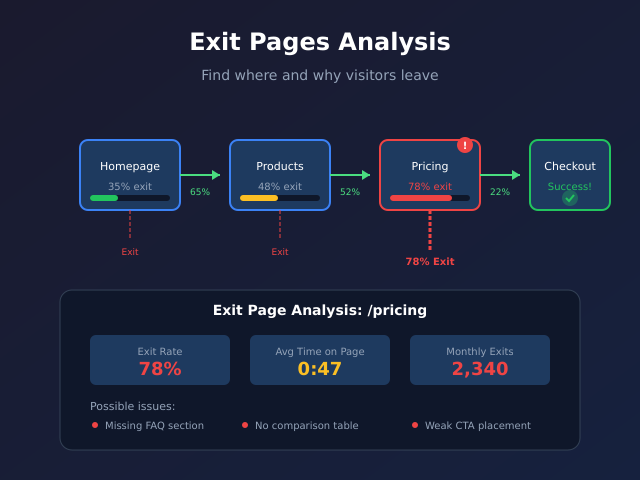
Every visitor leaves eventually—that’s not the problem. The problem is when they leave from the wrong places, at the wrong times, signaling friction you could fix. Exit page analysis reveals where your content fails to deliver, where navigation breaks down, and where conversion paths hit dead ends. This guide shows you how to find meaningful exit patterns and turn them into actionable improvements.
What you’ll accomplish
- Understand the difference between exit pages and bounce pages
- Find exit page data in GA4 using explorations
- Identify which exits are problems versus natural endpoints
- Calculate exit rate and interpret it correctly
- Prioritize fixes based on traffic volume and exit patterns
Exit pages vs bounce pages: The critical difference
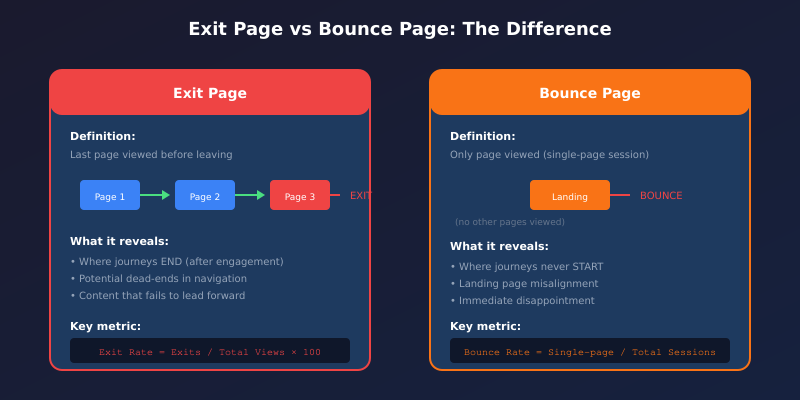
These terms get confused constantly, but they measure different behaviors:
| Metric | Definition | What It Reveals |
|---|---|---|
| Exit page | Last page viewed before leaving the site | Where journeys end (after engagement) |
| Bounce page | Only page viewed in a single-page session | Where journeys never start |
A page can be both. If someone lands on your pricing page and leaves without clicking anything, it’s both a bounce and an exit. But if they browse three articles before leaving from your pricing page, that’s an exit without a bounce. Not sure what exit rate benchmarks apply to your industry? The KPI Dictionary generates industry-specific KPIs including exit-related metrics.
Key insight: High bounce rate means visitors aren’t engaging at all. High exit rate means visitors engage but then leave from that specific page. Different problems require different solutions.
Finding exit pages in GA4
GA4 doesn’t have a dedicated “Exit Pages” report like Universal Analytics did. You need to build it using Explorations.
Method 1: Free-form exploration
- Go to Explore → Blank (or start from a template)
- Add dimensions:
- Page path and screen class (or Page title)
- Add metrics:
- Exits
- Views
- Sessions
- Drag dimensions and metrics to the canvas
- Sort by Exits (descending) to see top exit pages
Method 2: Calculate exit rate
GA4 doesn’t provide exit rate as a built-in metric. Calculate it manually:
Exit Rate = (Exits from page / Total views of page) × 100In your exploration, create a calculated metric or export to a spreadsheet for this calculation. A page with 1,000 views and 400 exits has a 40% exit rate.
Method 3: Path exploration (visual)
For a visual representation of where users drop off:
- Go to Explore → Path exploration
- Set the ending point to the page you want to analyze
- Work backwards to see which paths lead to exits
- Look for unexpected drop-off points in the journey
Which exits are actually problems?
Not every exit indicates a problem. Some pages are natural endpoints—judging them by exit rate misses the point entirely.
Natural exit points (expected high exit rates)
- Thank you pages: After form submission or purchase—mission accomplished
- Contact/location pages: Users got the info they needed
- Documentation/help articles: Problem solved, they’re done
- External link pages: You intentionally sent them elsewhere
- Login pages: They’re entering your app, not your marketing site
Problem exit points (investigate these)
- Pricing pages: High exits suggest pricing concerns or missing information
- Product pages: Users aren’t moving to cart—why?
- Checkout steps: Each step with high exits is money lost
- Feature pages: They came to learn but left unconvinced
- Category pages: Nothing caught their interest
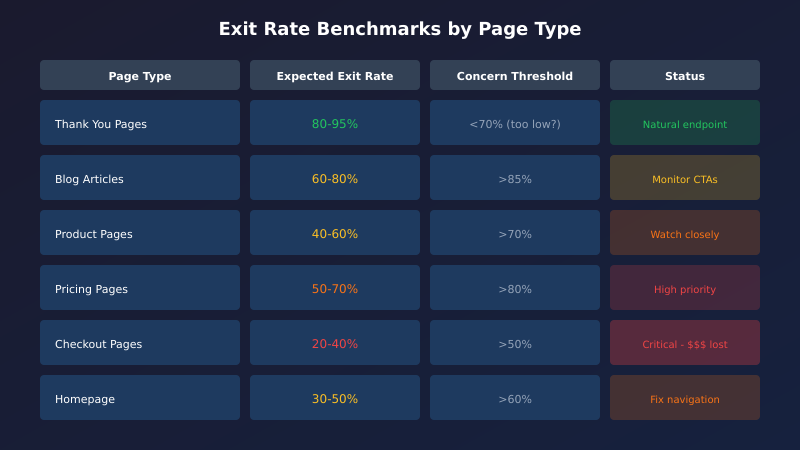
| Page Type | Expected Exit Rate | Concern Threshold |
|---|---|---|
| Thank you pages | 80-95% | Below 70% (where are they going?) |
| Blog articles | 60-80% | Above 85% |
| Product pages | 40-60% | Above 70% |
| Pricing pages | 50-70% | Above 80% |
| Checkout pages | 20-40% | Above 50% |
| Homepage | 30-50% | Above 60% |
Diagnosing exit page problems
Once you’ve identified problem exit pages, dig deeper to understand why users leave.
1. Check the user flow
Where did users come from before exiting?
- If most came from a specific page, the transition might be the problem
- If they came from search, the page might not match their intent
- If they came from paid ads, ad-to-page alignment needs review
- If you suspect tracking gaps are distorting your exit data, run through our Fix My Tracking decision tree to rule out configuration issues
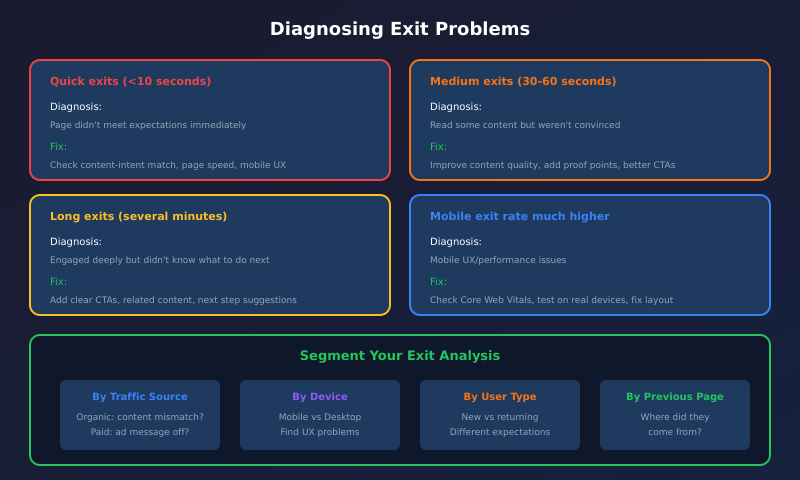
2. Segment by traffic source
Add traffic source dimensions to your exploration. Different sources often have different exit patterns:
- Organic search: High exits may indicate content doesn’t match search intent
- Paid traffic: High exits suggest ad messaging mismatch
- Social: High exits are common—social visitors browse casually
- Direct: Low exits expected—these visitors know what they want
3. Segment by device
Mobile vs desktop exit rates can reveal UX issues:
- Mobile exit rate significantly higher? Check page load speed and mobile layout
- Desktop exit rate higher? Forms or interactive elements might be the issue
- Tablet different from both? Layout breakpoints may be causing problems
4. Check time on page
Combine exit data with engagement time:
- Quick exits (under 10 seconds): Page didn’t meet expectations immediately
- Medium exits (30-60 seconds): They read some content but weren’t convinced
- Long exits (several minutes): They engaged deeply—the problem might be missing CTAs
Common causes and fixes
Missing or weak calls-to-action
Symptom: High engagement time but high exit rate
Diagnosis: Users read the content but didn’t know what to do next
Fixes:
- Add clear CTAs at natural stopping points
- Include “next step” suggestions at article end
- Add related content recommendations
- Make navigation to key pages more prominent
Content-intent mismatch
Symptom: Very short time on page, high exit rate from organic traffic
Diagnosis: Search visitors expected something different
Fixes:
- Review search queries bringing traffic to this page (Search Console)
- Adjust content to better match search intent
- Improve meta descriptions to set accurate expectations
- Create separate pages for different intent clusters
Page load or UX issues
Symptom: Extremely quick exits, much higher on mobile
Diagnosis: Technical problems preventing engagement
Fixes:
- Check Core Web Vitals for the page
- Test on actual mobile devices (not just browser emulation)
- Review for layout shifts, slow-loading elements, or broken functionality
- Check for intrusive popups or interstitials
Dead-end navigation
Symptom: Moderate time on page, no clear reason for exits
Diagnosis: Page doesn’t connect well to rest of site. If exits cluster on pages people reach by browsing, dig into how users move between search and navigation to see where the path breaks down.
Fixes:
- Add internal links to related content
- Include breadcrumb navigation
- Add “You might also like” sections
- Ensure sidebar or footer navigation is useful
Prioritizing which exits to fix
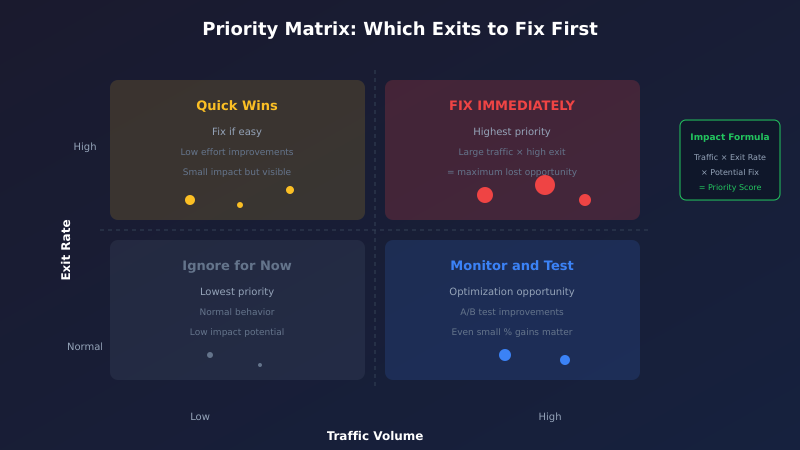
You can’t fix every page at once. Prioritize based on impact:
Priority matrix
| High Traffic | Low Traffic | |
|---|---|---|
| High Exit Rate | Fix immediately | Quick wins if easy |
| Normal Exit Rate | Monitor, test improvements | Ignore for now |
Calculate potential impact:
Monthly visitors × Exit rate × Potential reduction = Visitors retained

Example: 10,000 visitors × 75% exit × 20% reduction = 1,500 more engaged visitors
Focus on conversion path pages first
Exits matter most on pages that should lead to conversions:
- Checkout pages: Every exit is direct revenue loss
- Pricing pages: High intent visitors—don’t lose them
- Product pages: Close to conversion, high value
- Lead capture pages: Forms, demos, contact pages
- Key content pages: High-traffic articles that should nurture
Tracking improvements
After making changes, measure the impact:
- Export your baseline exit rates before changes
- Implement fixes one page or category at a time
- Wait 2-4 weeks for meaningful data
- Compare exit rates before and after
- Track downstream metrics (did retained visitors convert?)
Create a simple tracking document:
| Page | Exit Rate Before | Changes Made | Exit Rate After | Impact |
|---|---|---|---|---|
| /pricing | 78% | Added FAQ, comparison table | 65% | -13% exits |
| /features/export | 82% | Added CTA, related features | 71% | -11% exits |
Advanced: Exit analysis by user segment
Different user types exit for different reasons. In GA4 Explorations, add segments to compare:
- New vs returning: New users exit from different pages than loyal visitors
- Converters vs non-converters: Where do non-buying visitors drop off?
- High-value vs low-value: Do your best customers have different exit patterns?
- By country/language: Localization issues may cause regional exit spikes
Bottom line
Exit page analysis reveals where your site fails to guide visitors forward. Focus on problem exits—pages where users should continue but don’t—rather than natural endpoints like thank-you pages. Use GA4 Explorations to identify high-exit pages, segment by traffic source and device to understand why, and prioritize fixes based on traffic volume and proximity to conversion. A 10% reduction in exits from your pricing page is worth more than a 50% reduction from your privacy policy.
