
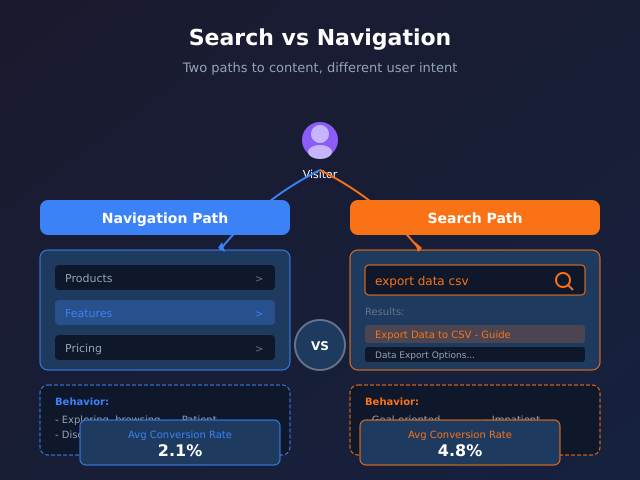
When users can’t find what they need, they either search or navigate. These two behaviors reveal different mindsets, different intent levels, and different content problems. Understanding how visitors choose between your navigation and search bar—and what happens after—shows exactly where your information architecture succeeds and where it fails. This guide shows you how to analyze both behaviors and optimize the paths that matter.
What you’ll accomplish
- Understand when users search versus navigate and why it matters
- Set up tracking for both behaviors in GA4
- Analyze search terms to find content gaps
- Compare conversion rates between search and navigation users
- Optimize both paths based on actual user data
Two paths, different users
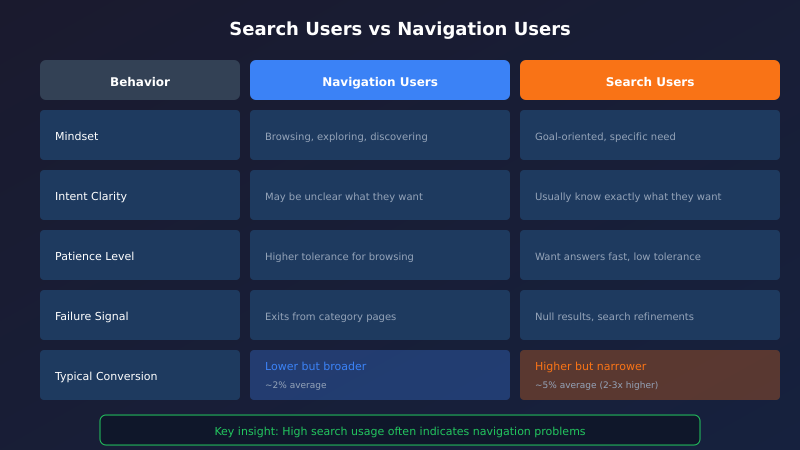
Users who search behave fundamentally differently from users who navigate. Neither is better—they indicate different needs and different stages of the visitor journey.
| Behavior | Navigation Users | Search Users |
|---|---|---|
| Mindset | Browsing, exploring | Goal-oriented, specific need |
| Intent | May be unclear what they want | Know what they want (usually) |
| Patience | Higher tolerance for browsing | Lower tolerance—want answers fast |
| Failure signal | Exits from category pages | Null results, search refinements |
| Typical conversion | Often lower but broader | Often higher but narrower |
Key insight: High search usage often indicates navigation problems. Users search because they couldn’t find what they needed through menus and categories. Track the ratio and investigate when search usage spikes.
Setting up tracking
Tracking site search in GA4
GA4’s Enhanced Measurement includes site search tracking, but you need to configure it correctly. See our site search tracking for detailed setup.
Quick verification:
- Go to Admin → Data Streams → Your Stream
- Click Enhanced Measurement (gear icon)
- Verify Site search is enabled
- Check the search parameter matches your site’s URL structure (commonly
s,q,query, orsearch)
Test by searching on your site and checking Realtime reports for the view_search_results event. If events aren’t appearing, run through the Fix My Tracking Enhanced Measurement troubleshooter.
Tracking navigation interactions
Navigation clicks aren’t tracked by default. You have two options:
Option 1: GTM click tracking
- Create click triggers for navigation menu links
- Fire GA4 events like
nav_clickwith parameters for menu item and level - Gives granular data on which menu items get used
Option 2: Path analysis
- Analyze user paths through category and listing pages
- Pages visited after homepage or landing pages indicate navigation usage
- Less setup required, but less precise
GTM implementation for nav tracking:
// Data Layer push on navigation click
document.querySelectorAll('.main-navigation a').forEach(link => {
  link.addEventListener('click', function() {
    dataLayer.push({
      event: 'nav_click',
      nav_item: this.textContent.trim(),
      nav_level: this.closest('ul').className,
      nav_destination: this.href
    });
  });
});
Analyzing search behavior
Key metrics to track
- Search rate: Percentage of sessions that include a search
- Search terms: What users actually look for
- Null result rate: Searches that return nothing
- Search refinements: Users who search again (first result didn’t help)
- Post-search behavior: What happens after search
Finding search data in GA4
Navigate to Reports → Engagement → Events and click on view_search_results. This shows total searches, but for term-level data, use Explorations:
- Go to Explore → Blank
- Add dimension: Search term
- Add metrics: Event count, Sessions, Conversions
- Set rows to Search term, sort by Event count descending
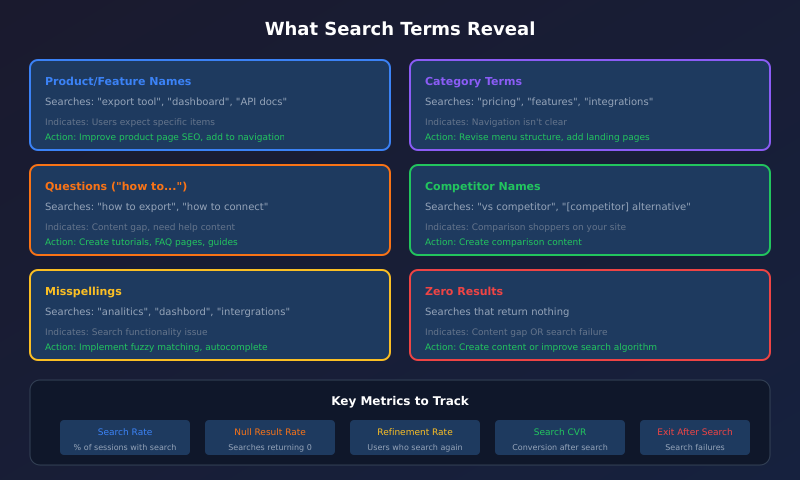
What search terms reveal
| Search Pattern | What It Indicates | Action |
|---|---|---|
| Product names | Users expect specific items | Improve product page SEO, add to navigation |
| Category terms | Navigation isn’t clear | Revise menu structure, add landing pages |
| Questions (“how to…”) | Content gap | Create help content, FAQ pages |
| Competitor names | Comparison shoppers | Create comparison content |
| Misspellings | Search functionality issue | Implement fuzzy matching/autocomplete |
| Terms with no results | Content gap or search failure | Add content or improve search algorithm |
Analyzing navigation behavior
Navigation flow analysis
Use GA4’s Path exploration to see how users move through your navigation structure:
- Go to Explore → Path exploration
- Start from homepage or key landing pages
- Analyze the most common next steps—these often reveal what readers want to see next
- Look for unexpected drop-offs or loops
Warning signs in navigation data
- High exit rate from category pages: Users can’t find what they want within categories
- Many users going back to homepage: Navigation led them astray
- Low clicks on certain menu items: Either not needed or poorly labeled
- Users jumping between unrelated categories: Information architecture confusion
- Search spike after visiting navigation pages: Navigation failed them
Comparing conversion rates
The real insight comes from comparing how search users and navigation users convert. The KPI Dictionary shows which conversion and engagement metrics matter most for your industry — use those as your baseline for comparison.
Create comparison segments
In GA4 Explorations, create two segments:
Search users segment:
- Sessions where event name equals
view_search_results
Navigation-only segment:
- Sessions where event name does not equal
view_search_results - Optionally: include
nav_clickevents if tracking navigation
Metrics to compare
| Metric | What Higher Search User Values May Indicate |
|---|---|
| Conversion rate | Search users have clearer intent—optimize search experience |
| Revenue per session | Searchers may be higher value—invest in search UX |
| Pages per session | Lower for search (efficient) or higher (struggling) |
| Session duration | Context-dependent—could mean efficiency or difficulty |
| Bounce rate | High for either indicates experience problems |
Typical patterns
E-commerce sites: Search users often convert at 2-3x the rate of browsers, but represent a smaller portion of traffic. Every percentage of traffic you can convert to successful searchers increases overall conversion.
Content sites: Navigation users may show higher engagement (more pages, longer sessions) because they’re in exploration mode. Search users get what they need and leave—lower engagement but potentially higher satisfaction.
SaaS sites: Search users on marketing sites may be comparing features—track if they convert or leave. High search without conversion suggests content gaps in feature documentation.
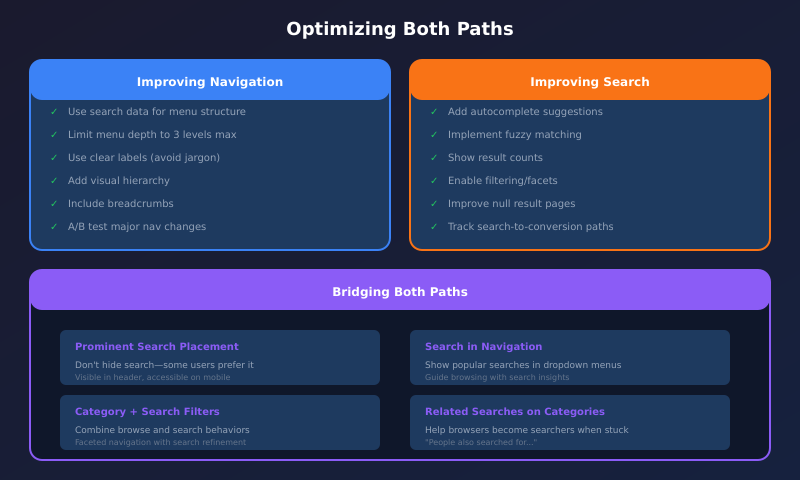
Optimizing both paths
Improving navigation
- Use data for menu structure: Popular search terms should often become navigation items
- Limit menu depth: More than 3 levels causes confusion
- Use clear labels: Industry jargon in menus confuses visitors
- Add visual hierarchy: Distinguish primary from secondary navigation
- Include breadcrumbs: Help users understand where they are
- Test menu changes: A/B test significant navigation redesigns
Improving search
- Add autocomplete: Suggest results as users type
- Implement fuzzy matching: Handle misspellings gracefully
- Show result counts: Let users know if their query is too broad or narrow
- Enable filtering: Let users refine results by category, date, etc.
- Improve null result pages: Suggest alternatives instead of dead ends
- Track search-to-conversion paths: Understand what makes searches successful
Bridging both paths
- Prominent search placement: Don’t hide search—some users prefer it
- Search suggestions in navigation: Popular searches in dropdown menus
- Category pages with search filters: Combine browse and search behaviors
- Related searches on category pages: Help browsers become searchers when needed
Red flags to watch
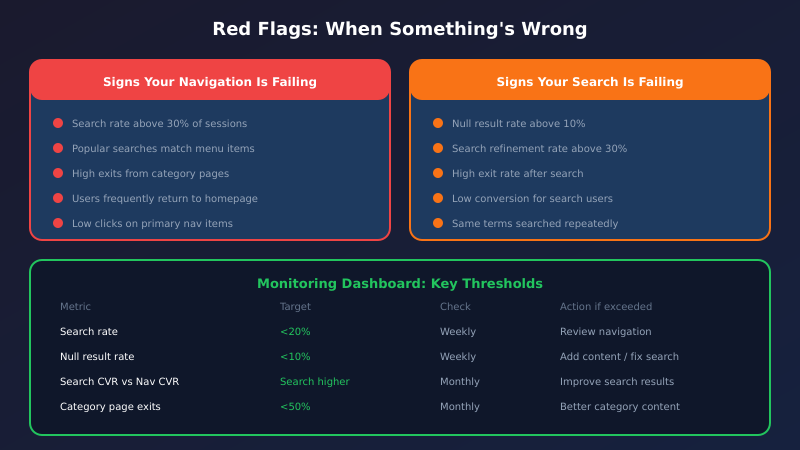
Signs your navigation is failing
- Search rate above 30% of sessions
- Popular search terms match existing menu items (users can’t find them)
- High exit rates from category/listing pages
- Users frequently return to homepage during sessions
- Low click-through on primary navigation items
Signs your search is failing
- Null result rate above 10%
- Search refinement rate above 30%
- High exit rate immediately after search
- Low conversion rate for search users
- Same terms searched repeatedly by same users
Building a monitoring dashboard
Create a custom GA4 exploration to monitor both behaviors over time:
| Metric | Target | Check Frequency |
|---|---|---|
| Search rate (% of sessions) | <20% for most sites | Weekly |
| Null result rate | <10% | Weekly |
| Top search terms (changes) | Monitor for new patterns | Weekly |
| Search conversion rate | Higher than navigation | Monthly |
| Navigation conversion rate | Stable or improving | Monthly |
| Category page exit rates | <50% | Monthly |
Bottom line
Search and navigation serve different user needs—neither is superior. Navigation works best for browsing and discovery; search serves users who know what they want. Track both behaviors, compare conversion rates, and use search terms to identify navigation gaps—our deep dive on site search tracking walks through capturing those queries in GA4. When search rates spike, your navigation probably needs work. When search users don’t convert, your search results need improvement. The goal isn’t to push users toward one path—it’s to make both paths lead to success.
