
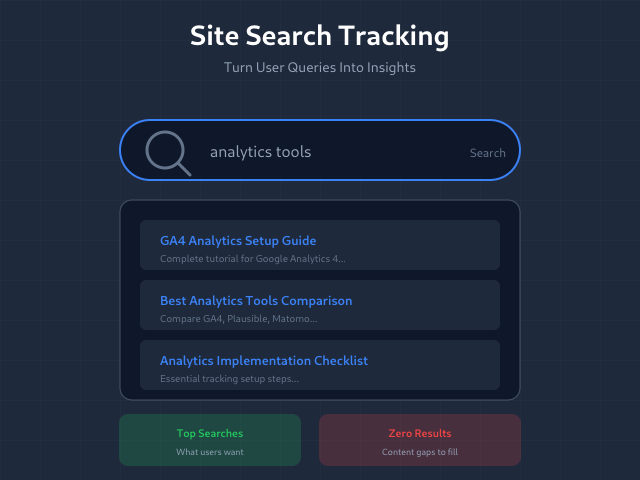
When users search your site, they’re telling you exactly what they want — and often, what they can’t find. Site search tracking captures these signals. Every search query is a window into user intent, content gaps, and navigation failures.
GA4 can track site search automatically, but setup varies by how your search works. This guide covers configuration for standard URL-based search and custom implementations.
Why Site Search Data Matters
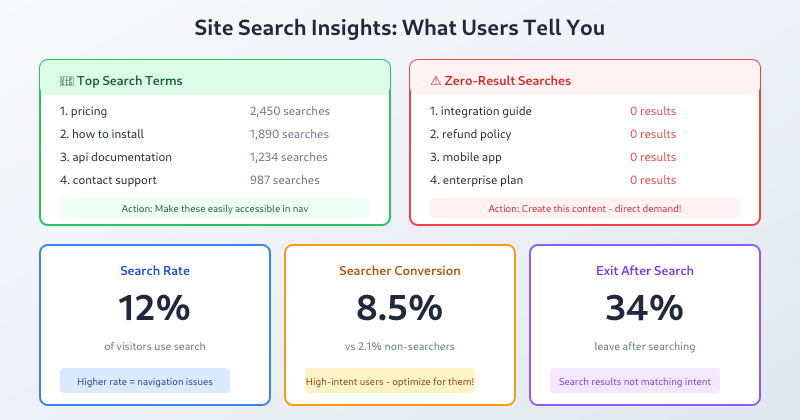
Site search reveals what analytics can’t see directly:
| Insight | What It Shows | Action |
|---|---|---|
| Top search terms | What users want most | Prioritize content creation |
| Zero-result searches | Content gaps | Create missing content |
| Search-to-exit rate | Search failure | Improve search quality |
| Post-search behavior | Whether search helped | Optimize result pages |
| Search refinements | Initial search failures | Improve search suggestions |
Users who search convert at higher rates than browsers — they have specific intent. Understanding their queries helps you serve that intent better. Search-to-conversion rate is a critical KPI — the KPI Dictionary shows how it ranks alongside other metrics for your industry.
How Site Search Tracking Works
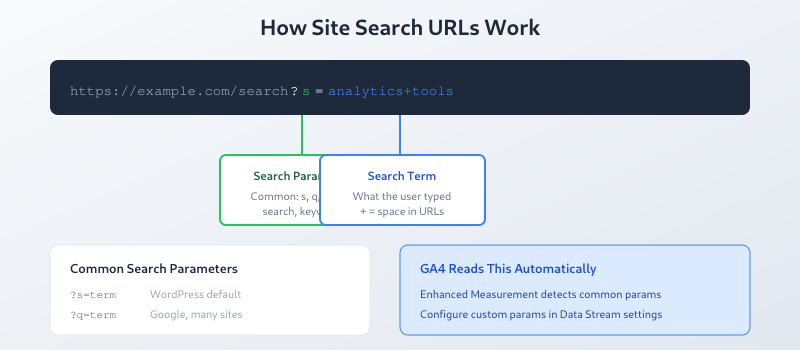
Most site searches append the query to the URL as a parameter:
https://example.com/search?q=analytics+tools
https://example.com/?s=pricing
https://example.com/search-results?query=ga4+setup
GA4 reads these URL parameters and extracts the search term. The key is telling GA4 which parameter contains the query.
GA4 Enhanced Measurement Setup
GA4’s Enhanced Measurement includes automatic site search tracking.
Enabling Site Search
- Go to Admin → Data Streams
- Select your web stream
- Click Enhanced measurement settings (gear icon)
- Find “Site search” and ensure it’s enabled
- Click “Show advanced settings”
Configuring Search Parameters
GA4 looks for common search parameters by default:
qssearchquerykeyword
If your site uses a different parameter, add it in the advanced settings:
- In “Site search” advanced settings
- Find “Search term query parameter”
- Add your custom parameter (e.g.,
searchterm) - Separate multiple parameters with commas
Identifying Your Search Parameter
Not sure what parameter your site uses? Perform a search and check the URL:
?q=test→ parameter isq?s=test→ parameter iss(WordPress default)?search_query=test→ parameter issearch_query
The text before the = is your search parameter.
Custom Site Search Tracking with GTM
Some sites don’t use URL parameters for search — they use JavaScript-based search or single-page applications. These need custom GTM implementation.
When You Need Custom Tracking
- Search doesn’t change the URL
- AJAX-powered search results
- Single Page Applications (SPAs)
- Search happens in modals or overlays
- You need additional search metadata
Implementation Steps
Step 1: Push Search Data to dataLayer
When a search occurs, push the query to the dataLayer:
// When search is submitted
dataLayer.push({
  'event': 'site_search',
  'search_term': userQuery,
  'search_results_count': resultsCount
});
Add this to your search form submission handler or search results page.
Step 2: Create GTM Variables
Create Data Layer Variables for:
search_term— The query stringsearch_results_count— Number of results (optional but valuable)
Step 3: Create Trigger
- Triggers → New → Custom Event
- Event name:
site_search
Step 4: Create GA4 Event Tag
- Tags → New → GA4 Event
- Event name:
search(GA4’s standard event name) - Parameters:
search_term= {{DLV – search_term}}search_results= {{DLV – search_results_count}}
- Trigger: site_search custom event
Tracking Zero-Result Searches
Zero-result searches are gold for content strategy. Track them explicitly:
dataLayer.push({
  'event': 'site_search',
  'search_term': userQuery,
  'search_results_count': 0,
  'zero_results': true
});
In GA4, filter for search_results = 0 to find content gaps.
Viewing Site Search Data in GA4
Standard Reports
Site search events appear in:
- Reports → Engagement → Events: Look for “search” or “view_search_results”
- Realtime: See searches as they happen
Search Terms Report
GA4 doesn’t have a dedicated search terms report like Universal Analytics. Build one in Explore:
- Create new Free Form exploration
- Dimensions: Search term
- Metrics: Event count, Users, Engagement rate
- Filter: Event name = search
- Sort by Event count descending
Search Analysis Questions
| Question | How to Answer |
|---|---|
| What do users search for most? | Sort search_term by event count |
| What searches return no results? | Filter where search_results = 0 |
| Do searchers convert better? | Create segment of users who searched, compare conversion rate |
| What pages trigger most searches? | Add page_location dimension before search event |
| Do users refine searches? | Look for multiple search events per session |
Site Search Best Practices
1. Normalize Search Terms
Users search for “GA4”, “ga4”, “Google Analytics 4” — same intent, different terms. Consider normalizing:
- Lowercase all terms before tracking
- Group synonyms in analysis
- Use regex in reports to combine variations
2. Track Search Context
Where users search matters. Add context parameters:
search_location: header, sidebar, 404 pagesearch_category: if searching within a sectionpage_type: what page triggered the search
3. Monitor Zero-Results Weekly
Create a recurring report of zero-result searches. These are direct requests for content you don’t have. Prioritize creating it.
4. Track Search-to-Conversion Path
Users who search and then convert are showing high-intent behavior. Build an Explore report:
- Create segment: Users who triggered “search” event
- Compare conversion rate vs. non-searchers
- Analyze which search terms lead to conversions
5. Exclude Common Terms from Analysis
Some searches aren’t actionable:
- Single letters or typos
- Empty searches (if they somehow fire)
- Bot-generated queries
Filter these in your reports or exclude them at tracking level.
Common Site Search Issues
If search events aren’t showing up, the Fix My Tracking tool walks through Enhanced Measurement issues and missing event diagnosis.
Search Events Not Appearing
Causes:
- Wrong query parameter configured
- Enhanced Measurement not enabled
- Search uses POST instead of GET (no URL parameter)
Fix: Verify your search parameter. Check if search changes the URL. Use GTM for non-URL searches.
Duplicate Search Events
Causes:
- Both Enhanced Measurement and GTM tracking active
- Search results page reloads trigger multiple events
Fix: Choose one tracking method. Add conditions to prevent duplicate fires.
Encoded Characters in Search Terms
Causes:
- Special characters URL-encoded (%20 for space)
- Non-ASCII characters garbled
Fix: GA4 typically decodes these automatically. If not, use JavaScript decodeURIComponent() before pushing to dataLayer.
Bottom Line
Site search tracking transforms user queries into actionable insights. GA4’s Enhanced Measurement handles URL-based search automatically — just configure the right parameter. JavaScript-based search needs GTM with dataLayer events. Focus on top search terms for content prioritization and zero-result searches for gap analysis. For the bigger picture of how visitors decide to type a query versus click through your menus, see our guide to internal search versus navigation. Users who search are telling you exactly what they want. Listen to them.
