
A GTM workspace is an isolated draft layer of your container in Google Tag Manager — a private staging area where you edit tags, triggers, and variables without touching what visitors load. Nothing in a workspace goes live until you publish it. This guide covers what a workspace is, how it sits between the container and a version, the 3-workspace limit on the free tier, the default workspace, how changes stay isolated, the exact steps to publish, and what happens when two people edit the same container at once.
What Is a GTM Workspace?
A GTM workspace is an isolated draft of a container where you build and test tracking changes that stay invisible to your live site until you publish them. Think of it as a sandbox copy of the current configuration: every tag you add, every trigger you tweak, every variable you rename happens inside that copy. The published live container keeps serving the old configuration the whole time.
That isolation is the entire point. Tag Manager lets you deploy tag management changes without a code release, but speed without safety is how you break analytics across a whole site. The workspace is the safety. It separates “I’m working on this” from “this is live,” so a half-finished GA4 migration never leaks into production. Google’s own Tag Platform documentation frames workspaces the same way: a working area that keeps in-progress edits out of the live container.
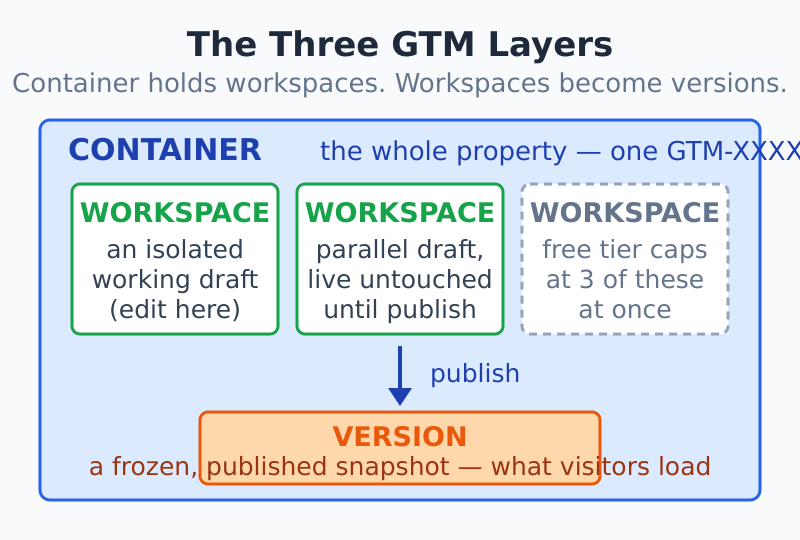
Workspace vs Version vs Container — The Three Layers
Most workspace confusion is really a layer-naming problem. Tag Manager stacks three things, and people use the words interchangeably until something breaks. Anchor the model first and the rest of GTM gets easier.
- Container — the whole property. One
GTM-XXXXXXXID, one snippet on every page. It holds everything. - Workspace — a working draft inside the container. Where you make changes. Multiple can exist at once.
- Version — a frozen, numbered snapshot created when you publish. The version is what the live container actually serves.
The flow runs in one direction: you edit a workspace, you publish it, and publishing produces a version snapshot that merges back into the base container. The next person who opens a workspace starts from that updated base.
| Layer | What it is | Mutable? | Who sees it |
|---|---|---|---|
| Container | The full account-level bundle of all tags, triggers, and variables | Via workspaces only | Structure only |
| Workspace | An editable draft branched from the current base container | Yes — freely | Editors, in Preview mode |
| Version | A read-only snapshot saved at publish time | No — frozen | Every site visitor (once published) |
One sentence keeps it straight: the container holds workspaces, and a workspace becomes a version the moment you publish. If you want the full anatomy of the bundle the workspace lives inside, the container glossary entry covers container types and snippet placement.
The Default Workspace and the 3-Workspace Limit
Every container ships with one workspace already created, literally named Default Workspace. On a solo setup, you can live in it forever — make a change, publish, repeat. The default workspace is just a regular workspace with a reserved name; it has no special powers, and you cannot delete it (you can rename it, but there’s rarely a reason to).
Teams outgrow a single workspace fast. The moment two changes are in flight at once — say one person tuning consent tags while another adds an ecommerce trigger — you want them in separate drafts so one can publish without dragging the other’s unfinished work live. That is what additional workspaces are for.
The free tier of GTM allows 3 concurrent workspaces. GTM 360 (the paid 360 tier) removes the cap and gives you unlimited workspaces. On free GTM you will hit “3-workspace limit” when you try to create a fourth.
When you hit the limit, you have two honest options: publish one of the open workspaces to free a slot, or discard a stale draft you no longer need. In my experience the limit is less painful than it sounds — three concurrent drafts is plenty for a small team, and a backlog of four-plus open workspaces usually means stuff is sitting unpublished that should have shipped days ago. The cap is an accidental forcing function for finishing work.
Making Changes in a Workspace
Inside a workspace, you edit the three primitives Tag Manager runs on: tags (what fires), triggers (when it fires), and variables (the data each tag reads). Every edit you make — a new GA4 event tag, a changed firing condition, a renamed lookup table — is scoped to that workspace alone.
This is why two workspaces can show different configurations of the same container at the same time. Your draft has the new tag; your colleague’s draft doesn’t, and the live container has neither. The change history panel tracks every modification in the workspace so you can see exactly what’s queued to publish, and discard individual changes if you change your mind.
Testing happens through Preview mode, which loads your workspace’s configuration in a connected browser tab rather than the published version. That’s the key detail: Preview shows the draft, so you can verify tags fire correctly before anyone else is affected. When something isn’t firing, the debug view tells you which trigger evaluated false and why — fix it in the workspace, re-preview, and only then publish.
How to Publish a GTM Workspace
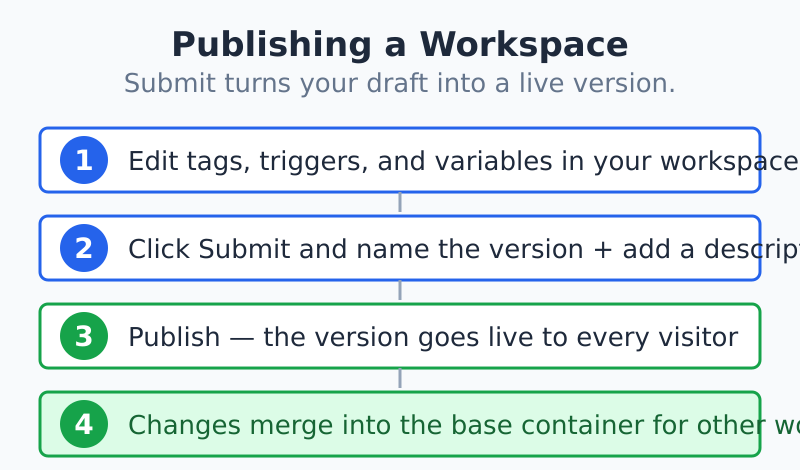
Publishing is the moment a draft stops being private and becomes the live configuration. The mechanics are short, but the order matters, because publishing is what creates the version snapshot.
- Finish and preview your changes. Confirm every new or edited tag fires as expected in Preview mode. Publishing an untested workspace is the single most common way to break tracking.
- Click Submit (top-right of the workspace). GTM opens the submission screen and offers “Publish and Create Version” by default.
- Name the version and add a description. A line like “Added GA4 purchase event + consent trigger” is your rollback breadcrumb. Future-you will thank present-you.
- Publish. GTM freezes the workspace into a numbered version snapshot, pushes it to Google’s CDN, and your live container starts serving it within seconds.
- The version merges into the base container. The published changes become the new baseline, so the next workspace anyone opens starts from your update — not the old config.
If a published version turns out to be wrong, you don’t scramble to undo edits by hand. Open the Versions list, pick the last good snapshot, and publish that version — an instant rollback to a known-good state. This is why naming versions clearly pays off the day something breaks.
Workspace Conflicts in Team Setups
The free-tier 3-workspace limit exists partly because concurrent editing creates conflicts, and GTM has a specific way of handling them. A workspace conflict happens when someone publishes a version while your workspace is still open — your draft is now based on an outdated base container, and one or more items you touched may have changed underneath you.
Here’s the experience in practice. When you go to publish a workspace that’s behind the current base, GTM flags it and asks you to update the workspace first. If the changes don’t overlap — they edited Tag A, you edited Trigger B — the update merges cleanly and you publish as normal. If you both edited the same item, GTM shows a side-by-side conflict view and makes you pick: keep yours, take theirs, or merge manually field by field.
I’ve watched a team lose an afternoon to this exact thing — two people editing the same GA4 configuration tag in separate workspaces, neither aware of the other. The fix isn’t a feature; it’s coordination. A quick rule of “one container area per person at a time” plus clear version descriptions prevents almost every conflict. Tag Manager will catch the collision, but it can’t tell you whose change was correct.
When to Use Multiple Workspaces
Most sites do fine in the default workspace. Reach for extra workspaces when isolation actually buys you something:
- Parallel feature work. A long ecommerce build can sit in its own draft for days while small fixes still ship from a separate workspace.
- Staging vs production discipline. Use one workspace as a long-running staging draft you preview thoroughly before merging — useful when changes are risky and you want a buffer between editing and going live.
- Multi-person teams. Give each editor their own draft so nobody publishes someone else’s half-finished work. This is the most common reason teams bump into the 3-workspace limit.
- Clean rollback boundaries. Keeping unrelated changes in separate versions means a rollback reverts one feature, not a tangle of three.
When NOT to bother: a solo operator making one change at a time gains nothing from extra workspaces and just risks forgetting which draft holds what. Fewer, well-named versions beat a pile of stale drafts every time. Before any publish, it’s worth a quick pass through Fix My Tracking to catch the obvious breakages while they’re still safely inside the draft.
Frequently Asked Questions
What is the difference between a workspace and a version in GTM?
A workspace is a mutable draft where you edit tags, triggers, and variables; a version is the frozen, read-only snapshot GTM creates when you publish that draft. You work in workspaces and serve versions. A workspace can change a hundred times before publish; a version never changes once created — to “edit” a version you publish a new one.
How many workspaces can I have in GTM?
The free tier of Google Tag Manager allows 3 concurrent workspaces per container. GTM 360 (the paid 360 tier) removes the cap entirely and gives you unlimited workspaces. When you hit the 3-workspace limit on free GTM, publish or discard an existing draft to free a slot.
What happens when two people edit the same workspace?
Two people editing the literal same workspace see each other’s changes live, since a workspace is shared state — there’s no per-user copy. Conflicts arise instead between separate workspaces: if a teammate publishes while your draft is open, GTM flags your workspace as outdated and asks you to update it, showing a side-by-side merge view for any item you both changed.
How do I publish a GTM workspace?
Click Submit at the top of the workspace, choose “Publish and Create Version,” name the version with a clear description, and publish. GTM freezes the draft into a numbered version snapshot, serves it from Google’s CDN within seconds, and merges the changes into the base container. Always preview before you submit.
Can I delete the default workspace?
No. The Default Workspace cannot be deleted — every container must keep at least one workspace, and the default is the guaranteed one. You can rename it, and you can discard the unpublished changes inside it, but the workspace itself stays.
Related Glossary Terms
- Container — the bundle a workspace lives inside, with all container types explained.
- Tag Management — the deployment model workspaces make safe.
- Trigger — one of the three primitives you edit inside a workspace.
- Debug View — verify a workspace’s tags before you publish.
Bottom Line
A GTM workspace is the isolated draft layer where every safe tracking change begins — edit freely, preview thoroughly, publish to create a version, and respect the 3-workspace limit as a nudge to finish what you started.