
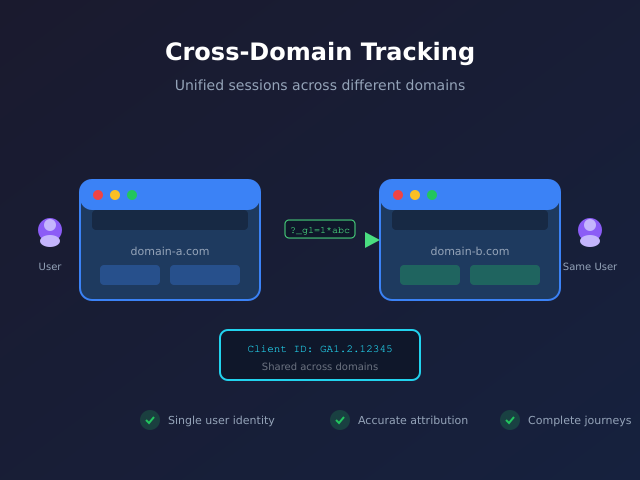
Your customer starts on your marketing site, clicks through to your shop subdomain, and completes a purchase. Without cross-domain tracking, GA4 sees this as two separate users—your conversion data becomes fiction. This guide shows you exactly when cross-domain tracking matters, how to set it up correctly, and how to verify it’s working.
What you’ll accomplish
- Understand when cross-domain tracking is necessary (and when it’s not)
- Configure cross-domain measurement in GA4 admin
- Set up the same tracking via Google Tag Manager for more control
- Verify the linker parameter is passing correctly between domains
- Troubleshoot common issues that break cross-domain sessions
When you actually need cross-domain tracking
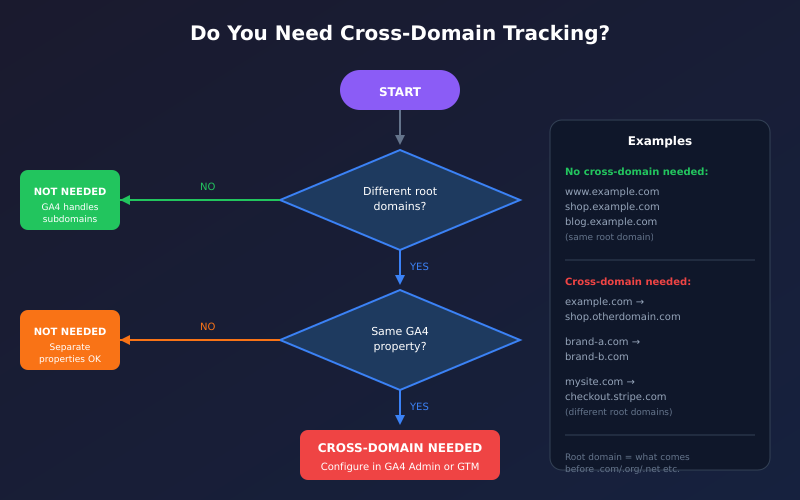
Cross-domain tracking solves one specific problem: maintaining user identity when someone moves between different domains that you own. The key word is domains—not subdomains, not folders.
You need it when:
- Marketing site → E-commerce site: example.com sends traffic to shop.differentdomain.com
- Main site → Third-party checkout: Your domain → Shopify/payment processor on their domain
- Multiple brand domains: brand-a.com and brand-b.com share the same GA4 property
- Localized domains: example.com, example.de, example.fr with unified tracking
You don’t need it when:
- Subdomains only: www.example.com → shop.example.com → blog.example.com (GA4 handles this automatically)
- Single domain: Everything on example.com, including /shop/ and /blog/ folders
- Separate properties: You intentionally want to track domains as distinct audiences
Common mistake: Setting up cross-domain tracking between subdomains. This breaks more than it fixes—GA4 already shares cookies across subdomains by default.
How cross-domain tracking works
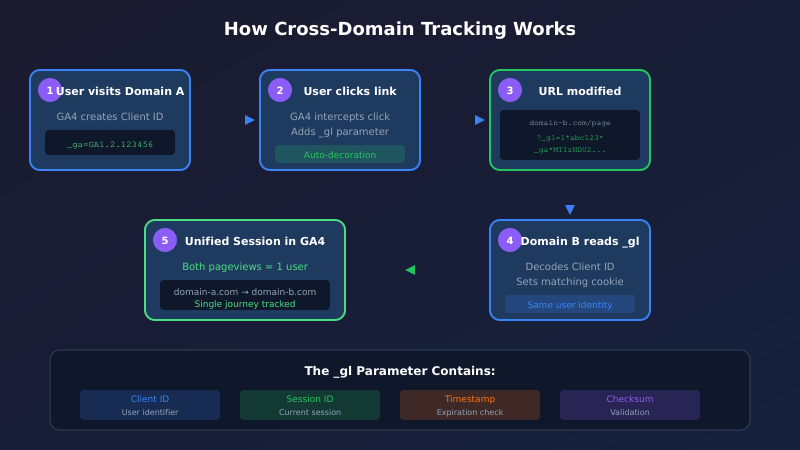
When a user clicks from Domain A to Domain B, GA4 appends a _gl parameter to the destination URL. This parameter contains the client ID and session information, allowing Domain B to recognize the visitor as the same person.
The technical flow:
- User visits domain-a.com, receives a client ID stored in cookies
- User clicks a link to domain-b.com
- GA4 intercepts the click and adds
?_gl=1~abc123...to the URL - Domain B reads the parameter, sets matching cookies, and continues the session
- Both pageviews appear under a single user in your reports
Method 1: GA4 Admin configuration (recommended)
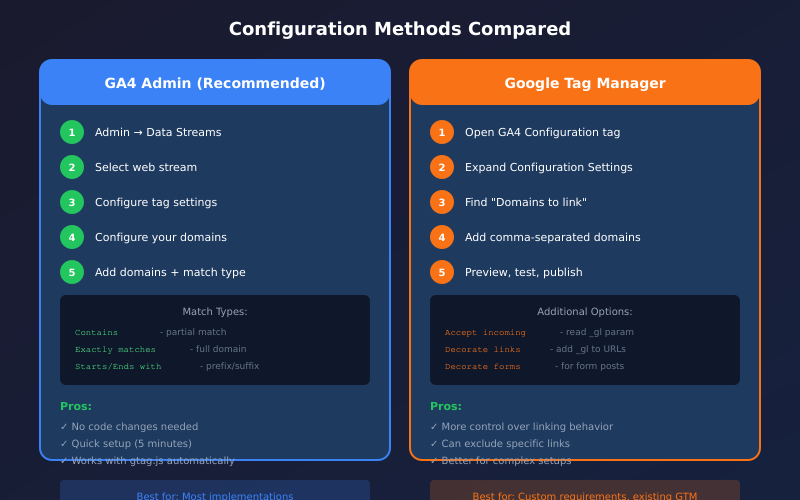
The simplest approach—no code changes required if you’re using the standard gtag.js installation.
Step 1: Access data stream settings
- Open your GA4 property
- Navigate to Admin → Data Streams
- Select your web data stream
- Scroll to Google tag section and click Configure tag settings
Step 2: Add your domains
- Click Configure your domains
- Add each domain that should share user identity
- Use the match type that fits your needs:
- Contains: Matches partial strings (e.g., “example” matches example.com and example.co.uk)
- Exactly matches: Full domain match only
- Starts with: Useful for subdomains you want to include
- Ends with: Match TLD variations
- Regex: Complex patterns
- Save your changes
| Domain Pattern | Match Type | What It Matches |
|---|---|---|
| example.com | Contains | example.com, shop.example.com, example.com.au |
| shop.example.com | Exactly matches | Only shop.example.com |
| example | Contains | example.com, example.de, myexample.com |
Method 2: Google Tag Manager configuration
Use GTM when you need more control over which links get the linker parameter, or when you’re already managing GA4 through Tag Manager.
Step 1: Configure the GA4 Configuration tag
- Open your GTM container
- Edit your GA4 Configuration tag (or Google tag)
- Expand Configuration Settings
- Under Domains to link, add each domain separated by commas
example.com, shop.anotherdomain.com, checkout.thirdparty.comStep 2: Configure auto-linking behavior
In the same tag settings, you can control:
- Accept incoming: Whether this domain should read the
_glparameter (default: true) - Decorate links: Whether outbound links should get the parameter added (default: true)
- Decorate forms: Whether form submissions should include the parameter (enable if you have cross-domain forms)
Step 3: Publish and test
Use GTM’s Preview mode to verify the configuration before publishing. Check that links to your other domains show the _gl parameter in the debugger.
Verification: confirm it’s working
Never assume cross-domain tracking works—always verify. Here are three methods, from quick to thorough.
Quick check: URL inspection
- Visit Domain A in your browser
- Click a link to Domain B
- Check the URL bar—you should see
?_gl=followed by encoded data - If the parameter is missing, cross-domain linking isn’t working
Debug check: GA4 DebugView
- Enable Debug mode using the GA Debugger extension
- Navigate from Domain A to Domain B
- In GA4 DebugView, confirm both pageviews appear under the same device/session
- Check that the
page_locationparameter shows both domains
Report check: Traffic acquisition
- Wait 24-48 hours for data to process
- Go to Reports → Acquisition → Traffic acquisition
- Look for self-referrals (your own domains appearing as referral sources)
- If you see your domains as referrers, cross-domain tracking isn’t working properly — test your campaign URLs with the Channel Group Predictor to confirm they map to the correct channel instead of appearing as referral traffic. Use the UTM Builder to generate properly tagged campaign URLs that preserve attribution across domains
Excluding self-referrals
Even with cross-domain tracking configured, you should add your domains to the referral exclusion list. This prevents edge cases where the linker fails from creating artificial referral sessions.
- Go to Admin → Data Streams → [Your Stream]
- Click Configure tag settings → Show more → List unwanted referrals
- Add all your domains using the same patterns as your cross-domain configuration
- Save changes
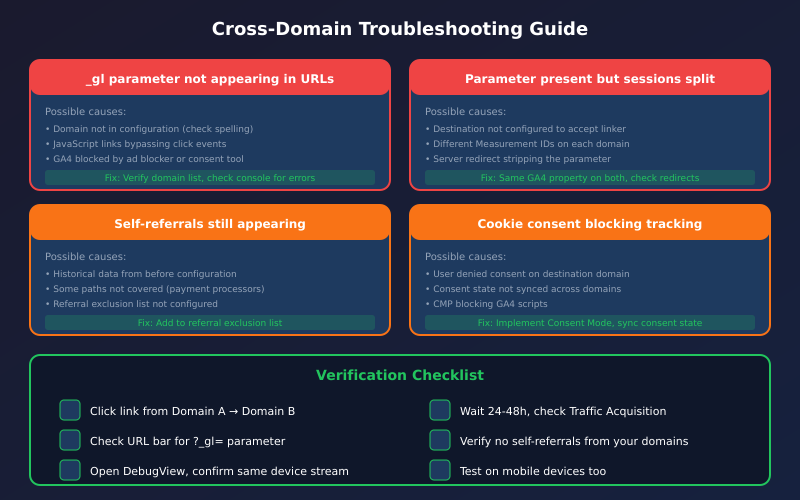
Common issues and fixes
For a guided walkthrough of these problems, the Fix My Tracking tool has a dedicated cross-domain troubleshooting branch that diagnoses your specific issue in under a minute.
Links don’t get the _gl parameter
Causes:
- Domain not added to the configuration (check spelling, including www vs non-www)
- JavaScript links that don’t trigger click events (custom navigation)
- Links added dynamically after page load (may need manual decoration)
- GA4 script blocked by ad blockers or consent tools
Fix: Verify domains are listed correctly. For dynamic links, you may need to manually call the linker via gtag API.
Parameter present but sessions still split
Causes:
- Destination domain not configured to accept incoming linker
- Different Measurement IDs on each domain
- Cookie consent blocking on the destination domain
- Server-side redirects stripping the parameter
Fix: Ensure both domains use the same GA4 property and both are configured to accept the linker parameter.
Self-referrals still appearing
Causes:
- Historical data from before configuration (GA4 doesn’t retroactively fix this)
- Some paths not covered by cross-domain setup (payment processors, embedded iframes)
- Referral exclusion list not configured
Fix: Add domains to referral exclusion list. For third-party checkouts you don’t control, you may need to accept some referral attribution.
Special cases
Third-party checkouts (Shopify, payment processors)
If your checkout is hosted on a third-party domain you don’t control, you have limited options:
- If they support GA4: Add their domain to your cross-domain config and configure their GA4 settings to use your Measurement ID
- If they don’t: The session will break. Add their domain to referral exclusions to at least preserve the original source attribution
Iframe embeds
Cross-domain tracking doesn’t work across iframes by default. If you embed content from another domain in an iframe:
- The iframe content tracks as a separate session
- You’ll need custom implementation using postMessage to pass the client ID
- Consider whether unified tracking is actually necessary for embedded content
AMP pages
AMP pages served from Google’s cache require additional configuration:
- Use the AMP linker configuration in your AMP analytics setup
- Ensure the destination pages accept the AMP linker parameter format
- Test thoroughly—AMP cross-domain has historically been problematic
Privacy considerations
Cross-domain tracking passes user identifiers in URLs. Consider:
- URL logging: The
_glparameter may appear in server logs, shared links, or referrer headers - Consent requirements: Under GDPR/CCPA, cross-domain tracking likely requires consent as it enables cross-site tracking
- Consent mode: If using Google’s Consent Mode, cross-domain linking respects consent state (see Google documentation) (see Google documentation)—it won’t add parameters if consent is denied
Bottom line
Cross-domain tracking keeps user sessions unified when visitors move between different domains you own. Configure it in GA4 Admin for simplicity or GTM for control. Always verify with URL inspection and DebugView before trusting your conversion data. And remember: if you’re only dealing with subdomains, you don’t need this at all—GA4 handles that automatically.
