
The worst tracking bugs are the silent ones. A tag stops firing, a parameter goes missing, an event doubles — and nothing breaks visibly. The site works, the dashboard fills with numbers, and you make decisions on data that’s been quietly wrong for three weeks. By the time someone notices, the bad data is already baked into every report. The fix is a disciplined QA pass before anything goes live. This guide gives you that checklist and the tools to run it.
When something is already misfiring and you need to find it fast, our Fix My Tracking tool walks you through the usual suspects. But the cheapest bug is the one you catch before launch — so let’s build the habit of verifying first.
Why Tracking QA Matters
Tracking doesn’t fail like normal code. There’s no error message, no broken page, no alert. A misconfigured event simply sends wrong data or no data, and your analytics keeps reporting confidently. That silence is exactly why QA is non-negotiable: the only way to know a tag works is to test it deliberately, because it will never tell you on its own.
The cost compounds. Every day a broken tag runs, it pollutes more of your historical data, and unlike a code bug you can patch, you usually can’t retroactively fix the numbers it corrupted. A few minutes of QA before launch saves weeks of distrust afterward.
The Pre-Launch QA Checklist
Run every new or changed tag through this checklist before it ships. Each item catches a specific class of silent failure.
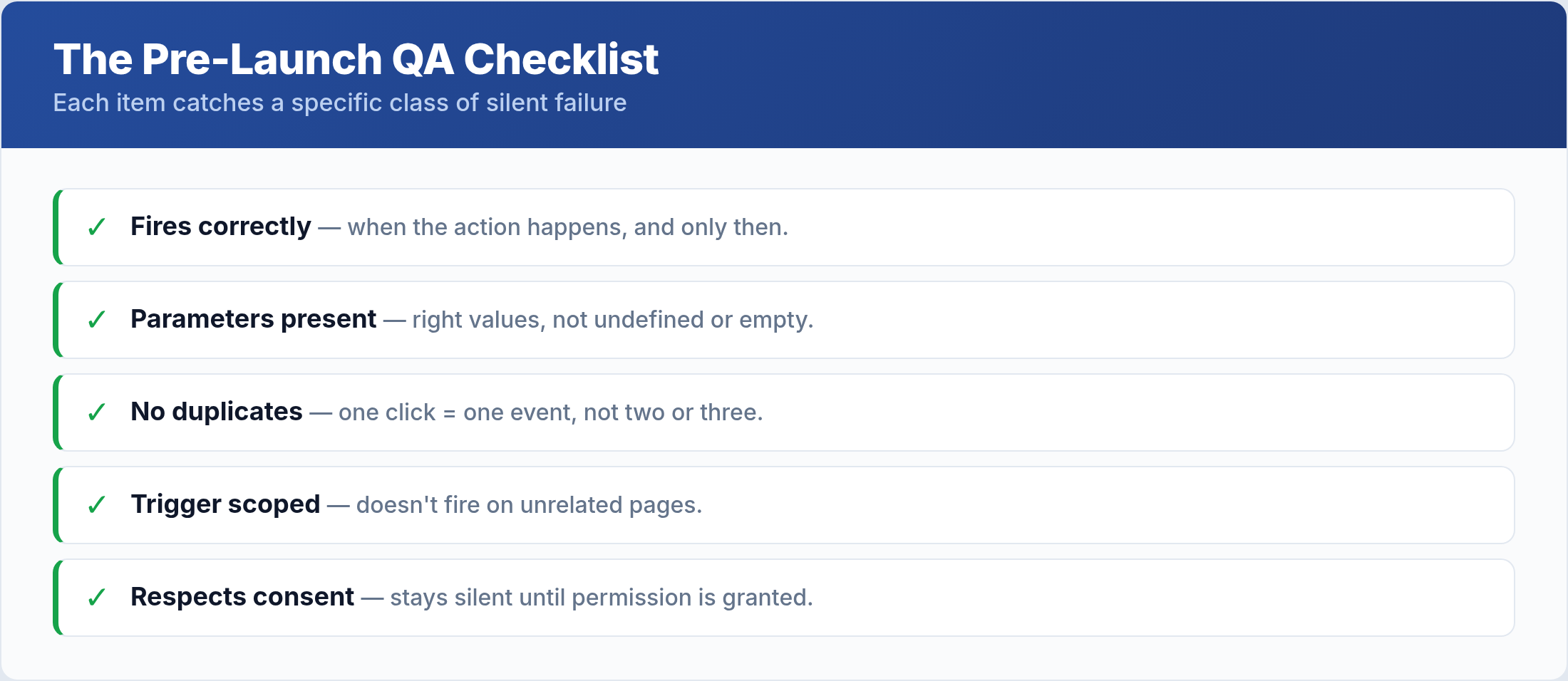
Confirm the event fires when the action happens — and only then. Check that every expected parameter is present and carries the right value, not undefined or an empty string. Verify there are no duplicates: a single click should produce a single event, not two or three. Make sure the trigger is scoped correctly so the tag doesn’t fire on unrelated pages. And confirm the tag respects consent, staying silent until permission is granted. Walk this list for every tag and most silent bugs never reach production.
DebugView Is Your Primary Tool
The single most useful tool for tracking QA is GA4’s DebugView. It shows events arriving in real time, with their full parameters, the moment you trigger them — exactly what you need to verify a tag.
Enable debug mode (through the GA Debugger extension, GTM’s preview mode, or a debug_mode parameter), then perform the action yourself and watch the event appear. Click into it to inspect every parameter and confirm the values are correct. DebugView is where you catch the missing parameter, the wrong value, and the duplicate fire — all before a single real user is affected. If you only learn one QA tool, make it this one. For a deeper walkthrough, see our guide on DebugView mastery.
The Errors QA Catches Most Often
A handful of bugs account for the majority of tracking problems. Knowing their signatures makes them fast to spot.
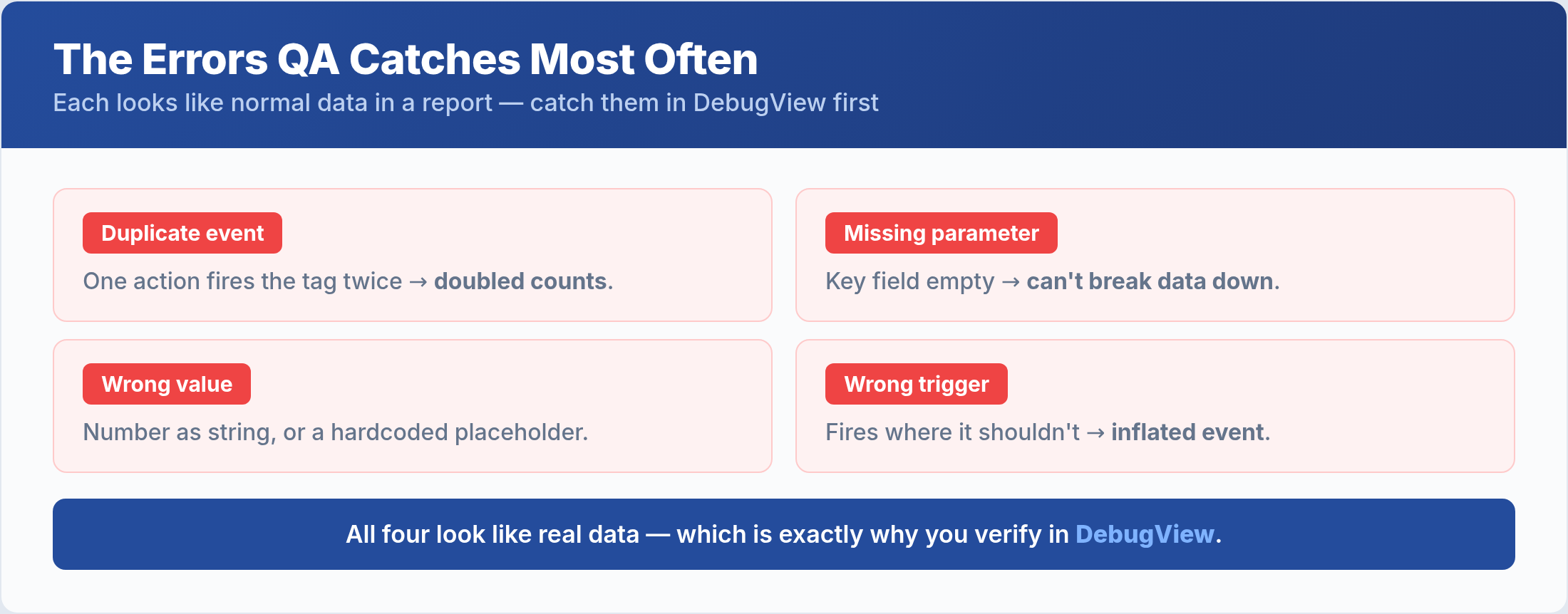
The duplicate event — one action firing the tag twice, usually from overlapping triggers — silently doubles your counts. The missing parameter leaves a key field empty, so your reports can’t break the data down. The wrong value sends a number as a string or a hardcoded placeholder instead of the real data layer value. And the wrong trigger fires the tag where it shouldn’t, inflating an event with irrelevant hits. Each one looks like normal data in a report, which is precisely why you have to catch them in DebugView first.
Verify Across Three Stages
A thorough QA pass checks the same tag at three points, because each stage confirms something the previous one can’t.
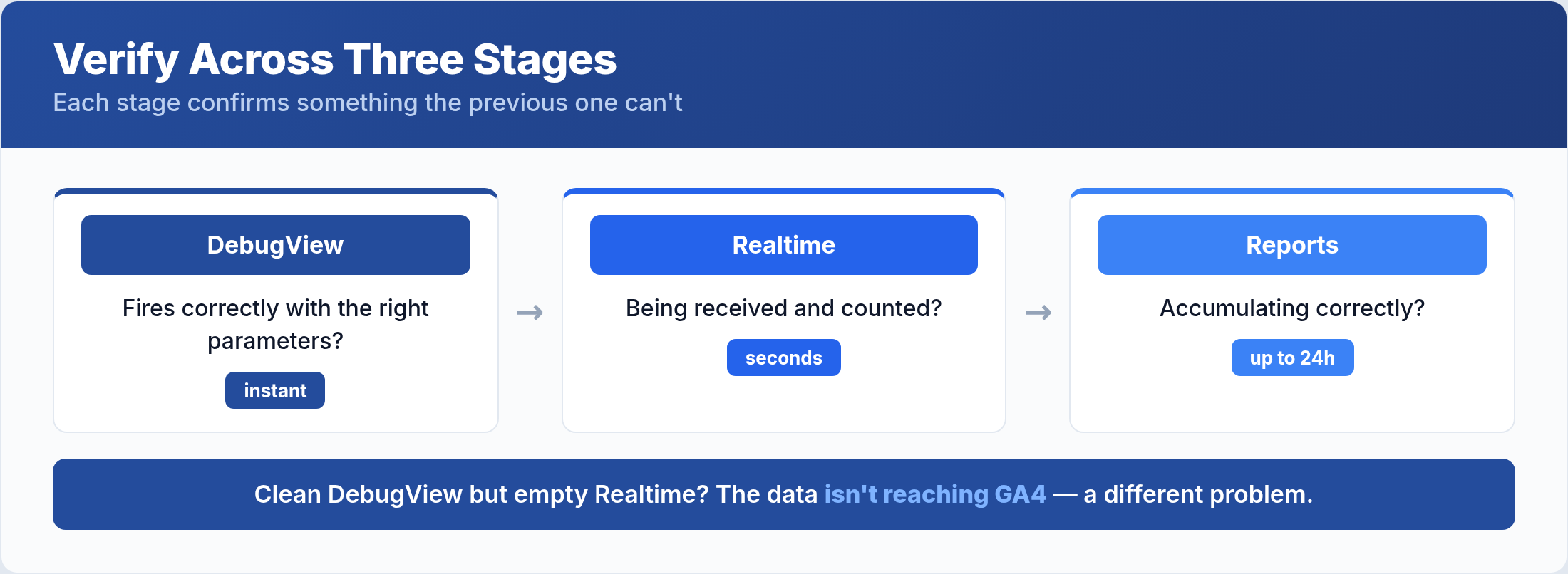
DebugView confirms the event fires correctly with the right parameters the instant you trigger it. Realtime confirms it’s being received and counted within seconds. Standard reports confirm it accumulates correctly over the next 24 hours. If all three agree, the tag is genuinely working. If DebugView is clean but Realtime shows nothing, the data isn’t reaching GA4 — a different problem than a parameter that’s simply mislabeled.
Common QA Mistakes
Even teams that test make a few predictable errors. Steer around these.
- Testing only the happy path. Verify the tag fires and that it doesn’t fire when it shouldn’t. Both halves matter.
- Skipping consent scenarios. Test with consent denied as well as granted, or you’ll ship a tag that fires before permission.
- Checking reports too early. Standard reports lag up to 24 hours. Use DebugView and Realtime for immediate verification.
- QA once, never again. A site change or plugin update can break a tag that worked yesterday. Re-test after any significant change.
- Not documenting expected behavior. Without a record of what each tag should do, QA becomes guesswork. Keep a simple tracking spec.
Frequently Asked Questions
How do I know if a GA4 event is firing correctly?
Use DebugView. Enable debug mode, perform the action, and watch the event appear with its parameters in real time. If it shows up once with the correct values, it’s firing correctly. If it doesn’t appear, fires twice, or has empty parameters, you’ve found the bug before it reached your data.
What’s the difference between DebugView and Realtime?
DebugView shows detailed events with full parameters from debug-enabled sessions — ideal for inspecting a single tag. Realtime shows aggregate activity from all users in the last 30 minutes. Use DebugView to verify how a tag fires and Realtime to confirm data is actually arriving.
How often should I QA my tracking?
Before every launch of a new or changed tag, and again after any significant site change, plugin update, or template edit. Tracking is fragile — a change unrelated to analytics can silently break a tag, so periodic re-testing of key events is worth the few minutes it takes.
Why are my event counts too high?
Almost always duplicate firing. Two overlapping triggers, a tag included twice, or an event that fires on both a click and a subsequent page load will double your counts. DebugView reveals it immediately: trigger the action once and check whether the event appears once or more.
The Bottom Line
Tracking fails silently, so the only defense is to test it deliberately before it ships. Run every tag through a pre-launch checklist — does it fire, only when it should, with the right parameters, exactly once, and only after consent? Verify in DebugView first, then confirm in Realtime and reports. Watch for the four usual bugs: duplicates, missing parameters, wrong values, and wrong triggers. A few minutes of QA is the cheapest insurance in analytics, because the alternative is discovering weeks later that every decision you made was built on data that was quietly broken all along.
