
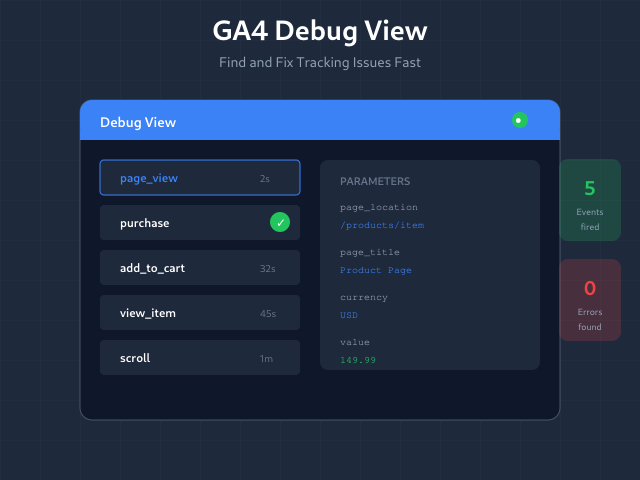
Your tracking looks correct. Events should fire. But something’s wrong — data isn’t showing up, parameters are missing, or conversions aren’t counting. GA4 Debug View shows exactly what’s happening in real-time, event by event.
Debug View is the fastest way to diagnose tracking issues — and if you already know something is broken, the Fix My Tracking decision tree can pinpoint the fix in 60 seconds. This guide covers how to enable it, what to look for, and how to fix the most common problems it reveals. Debug View is especially handy when you are validating custom events you have built in GA4 before they go live.
What Is Debug View?
Debug View is a real-time event stream in GA4 that shows every event and parameter sent from a specific device or browser. Unlike standard reports (which have processing delays), Debug View displays data instantly.
Key capabilities:
- See events as they fire, with no delay
- Inspect all parameters attached to each event
- Verify user properties are set correctly
- Identify missing or malformed data
- Test before deploying to production—just be sure to keep your own test traffic out of reports first
Debug View only shows data from devices with debug mode enabled — it won’t show all your traffic, just your test sessions.
Enabling Debug Mode
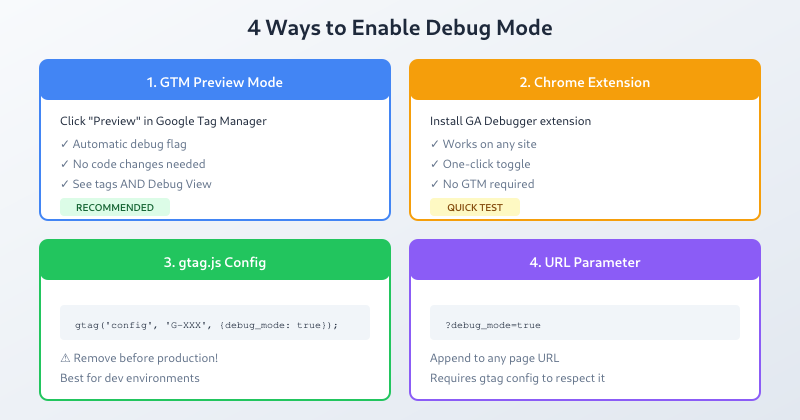
Debug mode must be explicitly enabled. There are several methods depending on your setup.
Method 1: GTM Preview Mode
The easiest method if you use Google Tag Manager:
- Open GTM and click “Preview”
- Enter your website URL
- A new tab opens with GTM debug panel
- GA4 events from this session automatically appear in Debug View
GTM Preview mode sets the debug flag automatically. No code changes needed.
Method 2: Chrome Extension
Google’s Google Analytics Debugger extension enables debug mode for any site:
- Install the extension
- Click the extension icon to enable
- Refresh your page
- Events now appear in Debug View
This works for any GA4 implementation, not just GTM-based.
Method 3: gtag.js Debug Parameter
For gtag.js implementations, add the debug flag:
gtag('config', 'G-XXXXXXXX', {
  'debug_mode': true
});
Only use this in development environments. Remove before production deployment.
Method 4: URL Parameter
Append ?debug_mode=true to your URL (requires gtag.js configuration to respect this parameter).
Accessing Debug View
- Open GA4 property
- Navigate to Admin → Data display → Debug View
- Or: Configure → Debug View (in newer interface)
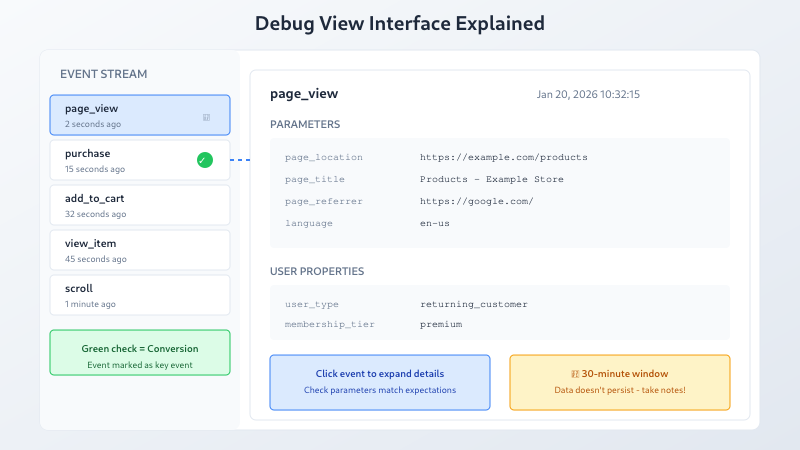
The Debug View screen shows:
- Timeline: Events in chronological order
- Event details: Click any event to see parameters
- Device selector: Switch between active debug devices
- Time window: Last 30 minutes of debug data
Reading Debug View Data
The Event Stream
Events appear as they fire, newest at top. Each event shows:
- Event name (
page_view,purchase, etc.) - Timestamp (seconds ago)
- Event icon indicating type
Click any event to expand its details.
Event Parameters
Every event carries parameters. The detail panel shows:
| Section | What It Contains |
|---|---|
| Parameters | Custom parameters you sent with the event |
| Items | E-commerce item array (for purchase, add_to_cart, etc.) |
| User properties | Persistent user-level attributes |
| Default parameters | Automatically collected (page_location, etc.) |
Color Coding
GA4 uses visual indicators:
- Green checkmark: Event counted as conversion
- Standard icon: Regular event
- Warning indicators: Issues detected
Common Debugging Scenarios
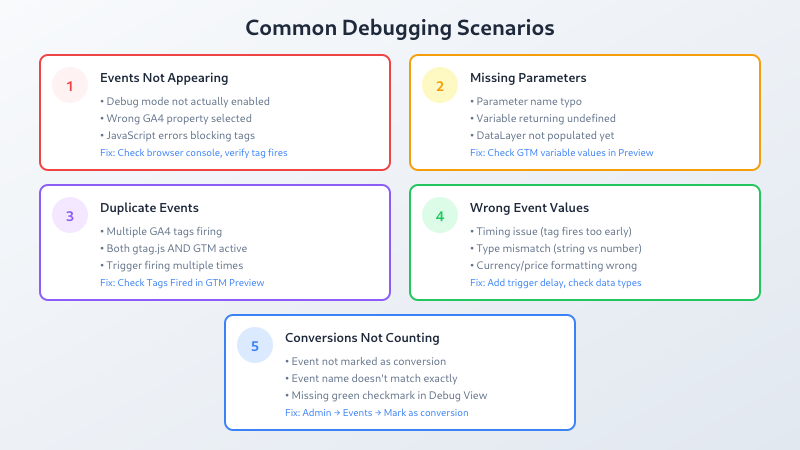
Scenario 1: Events Not Appearing
Symptom: You performed actions but no events show in Debug View.
Check:
- Is debug mode actually enabled? Look for gtag debug console messages in browser DevTools.
- Is the correct GA4 property selected?
- Is GTM Preview mode still active?
- Are there JavaScript errors blocking execution?
Fix: Open browser console (F12). Look for errors. Verify GA4 tag fires in Network tab (look for requests to google-analytics.com/g/collect).
Scenario 2: Missing Parameters
Symptom: Event appears but expected parameters are missing.
Check:
- Click the event in Debug View
- Expand Parameters section
- Compare against what you expected to send
Common causes:
- Parameter name typo in GTM or code
- Variable returning undefined/null
- Data layer not populated before event fires
- Parameter value exceeds character limit
Scenario 3: Duplicate Events
Symptom: Same event fires multiple times for one action.
Check: Count events in Debug View. If one click shows multiple purchase events, you have duplicate tracking.
Common causes:
- Multiple GA4 tags firing (check GTM)
- Both gtag.js and GTM implemented
- Event listener attached multiple times
- Page reloads triggering event again
Scenario 4: Wrong Event Values
Symptom: Parameters have unexpected values (wrong currency, zero values, etc.)
Check:
- Inspect parameter values in Debug View
- Trace back to data source (data layer, DOM element, JavaScript variable)
- Use GTM Preview to see variable values at time of firing
Common causes:
- Data layer populated after tag fires
- Variable scope issues
- Type mismatches (string vs. number)
- Currency/price formatting errors
Scenario 5: Conversions Not Counting
Symptom: Event fires (visible in Debug View) but conversion count is zero.
Check:
- Verify event is marked as conversion in GA4 Admin
- Check event name matches exactly (case-sensitive)
- Look for the green checkmark in Debug View
Fix: Go to Admin → Events. Find your event. Toggle “Mark as conversion” on.
Debug View Best Practices
1. Test Every New Implementation
Before deploying any tracking change:
- Enable debug mode
- Perform the tracked action
- Verify event appears with correct parameters
- Check parameter values match expectations
2. Use GTM Preview for Complex Debugging
GTM Preview mode shows more than Debug View:
- Which triggers fired (and which didn’t)
- Variable values at each step
- Data layer state changes
- Tag firing order
Use both tools together for comprehensive debugging.
3. Check Mobile Separately
Desktop debugging doesn’t guarantee mobile works. Test on actual devices:
- Enable debug mode on mobile browser
- Use Chrome remote debugging for detailed inspection
- Verify touch events and mobile-specific behaviors
4. Document Expected Events
Create a checklist of events and parameters you expect. The GA4 Debug Checklist gives you a printable 24-step verification guide. During debugging, verify each one:
| Event | Required Parameters | Verified? |
|---|---|---|
| purchase | transaction_id, value, currency, items | – |
| add_to_cart | items, value, currency | – |
| sign_up | method | – |
5. Clean Up Debug Mode
Remember to disable debug mode when done:
- Close GTM Preview mode
- Remove
debug_mode: truefrom production code - Disable Chrome extension if not needed
Debug mode data still counts toward your property limits.
Debug View Limitations
- 30-minute window: Data older than 30 minutes disappears
- Single device view: Shows one debug device at a time
- No historical data: Can’t review past debug sessions
- Limited filtering: Can’t search or filter events in the view
- Active only: Debug devices must be actively sending data
For complex debugging sessions, take screenshots or notes — the data won’t persist.
Bottom Line
Debug View is your fastest path to identifying tracking problems. Enable debug mode through GTM Preview, Chrome extension, or code flag. Check that events fire, parameters are correct, and values match expectations. Combine with GTM Preview for deeper investigation. Test thoroughly before production deployment — catching errors in Debug View is far easier than hunting them in processed reports days later.
