
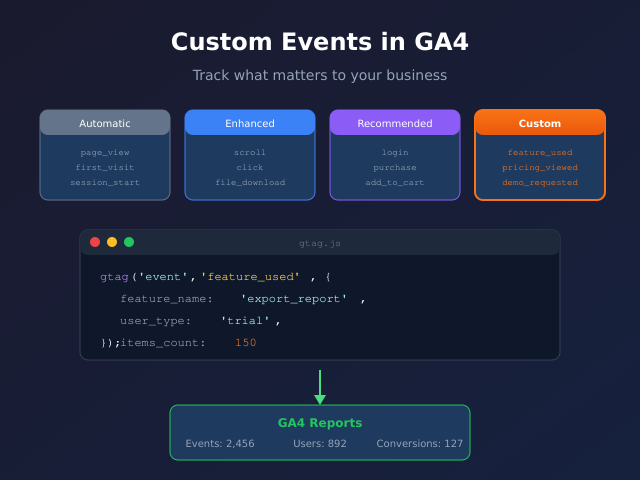
GA4’s automatic event tracking captures the basics—page views, scrolls, outbound clicks. But your business isn’t basic. Custom events let you track exactly what matters: feature usage, content interactions, micro-conversions, and user behaviors that default tracking will never see. This guide shows you when to create custom events, how to implement them properly, and how to structure them for useful reporting.
What you’ll accomplish
- Understand the difference between automatic, enhanced, recommended, and custom events
- Plan custom events with meaningful names and parameters
- Implement events using GTM (no-code) and gtag.js (developer)
- Create custom dimensions to make event parameters reportable
- Validate events in DebugView before going live
GA4 event types explained
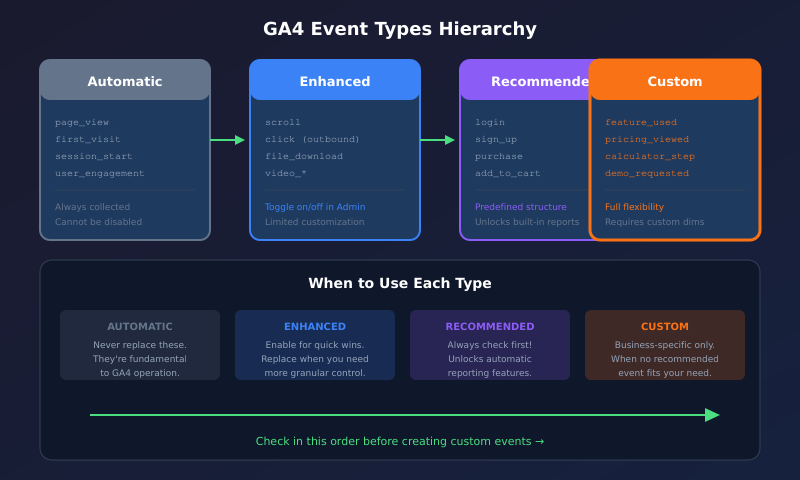
Before creating custom events, understand what GA4 already provides:
| Event Type | Examples | When to Use Custom Instead |
|---|---|---|
| Automatic | page_view, first_visit, session_start | Never—these are fundamental |
| Enhanced Measurement | scroll, click, file_download, video_* | When you need more control or specific triggers |
| Recommended | login, sign_up, purchase, add_to_cart | When the recommended structure doesn’t fit |
| Custom | feature_used, pricing_viewed, calculator_completed | Business-specific interactions |
Rule of thumb: Check if a recommended event exists before creating a custom one. The GA4 Recommended Events cheatsheet lists all 26 standard events on one printable page. GA4’s recommended events unlock automatic reporting features that custom events don’t get.
Planning your custom events
The biggest mistake with custom events is implementing before planning. A random collection of events creates report chaos. Start with questions, not implementation.
Step 1: List your questions
What do you need to know that current tracking doesn’t answer?
- Which product features do trial users actually try?
- How far into the pricing calculator do visitors get before abandoning?
- Do users who watch the demo video convert at higher rates? (For media-specific setup, see video engagement tracking.)
- Which help articles actually resolve support tickets?
Step 2: Define events and parameters
For each question, define:
- Event name: What action are you tracking?
- Parameters: What context makes the event useful?
- Trigger: When exactly should this fire?
| Question | Event Name | Parameters |
|---|---|---|
| Which features do trial users try? | feature_used | feature_name, user_type |
| Calculator abandonment point? | calculator_step | step_number, step_name |
| Demo video engagement? | demo_video_play | video_percent, video_duration |
| Help article effectiveness? | article_feedback | article_id, feedback_type |
Naming conventions that scale
GA4 event names have rules and best practices:
- Format: snake_case only (underscores, lowercase)
- Length: Maximum 40 characters
- Reserved prefixes: Don’t start with
ga_,google_, orfirebase_ - Structure: Use object_action format (e.g.,
video_play,form_submit,filter_apply)
Good naming examples:
✓ feature_used
✓ pricing_page_scroll
✓ support_ticket_created
✓ trial_started

✗ FeatureUsed (wrong case)
✗ ga_feature_used (reserved prefix)
✗ user_clicked_on_the_feature_button (too long, too specific)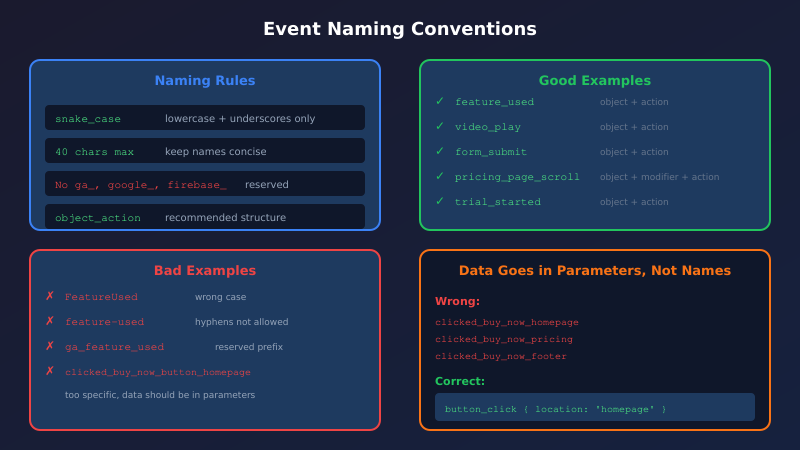
Implementation: Google Tag Manager
GTM is the preferred method—no code deployment needed, and you can update events without developer involvement.
Basic event: Button click
Track clicks on a specific button, like “Start Free Trial”:
- Enable variables: In GTM, go to Variables → Configure → Enable “Click Element”, “Click Classes”, “Click ID”, “Click Text”
- Create trigger:
- Trigger type: Click – All Elements
- Trigger fires on: Some Clicks
- Condition: Click Text contains “Start Free Trial”
- Create tag:
- Tag type: Google Analytics: GA4 Event
- Configuration Tag: Your GA4 config tag
- Event Name:
trial_button_click
- Add parameters (optional):
- Parameter:
button_location - Value:
{{Page Path}}
- Parameter:
- Test in Preview mode, then publish
Advanced event: Custom data from Data Layer
For richer data, use the data layer to pass information from your site:
Website code pushes to data layer:
dataLayer.push({
  event: 'feature_used',
  feature_name: 'export_report',
  user_type: 'trial',
  user_id: '12345'
});
GTM configuration:
- Create Data Layer Variables for
feature_name,user_type,user_id - Create Custom Event trigger for
feature_used - Create GA4 Event tag:
- Event Name:
feature_used - Parameters: Map each data layer variable
- Event Name:
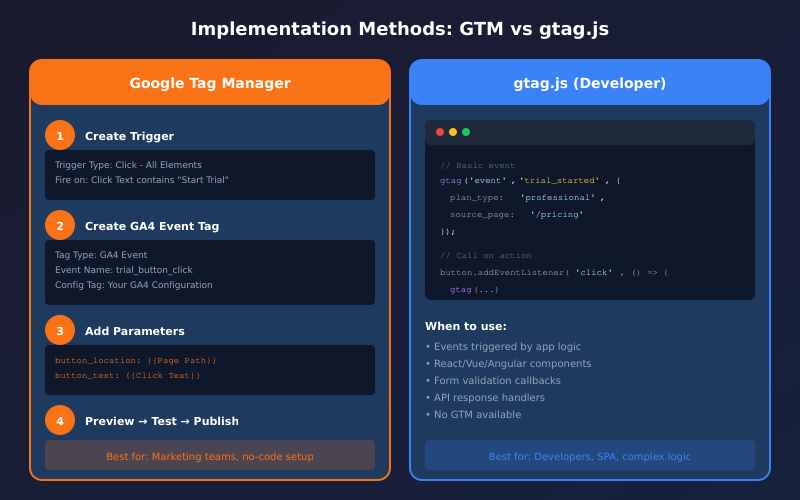
Implementation: gtag.js (developer method)
When you need events in code or can’t use GTM, send events directly via gtag.js:
// Basic event
gtag('event', 'trial_started', {
  plan_type: 'professional',
  source_page: '/pricing'
});

// Event with user properties
gtag('event', 'feature_used', {
  feature_name: 'bulk_export',
  items_exported: 150,
  user_type: 'paying'
});
Call this code when the relevant action occurs—button click handler, form submission callback, or feature completion.
Making parameters reportable: Custom dimensions
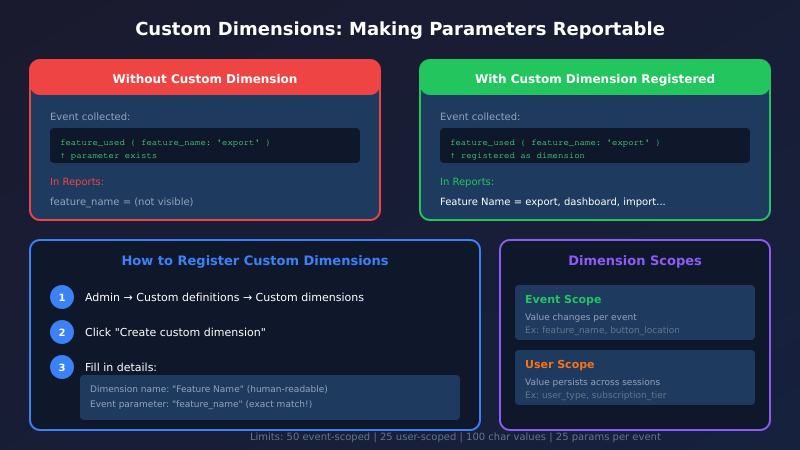
Event parameters are collected but not visible in standard reports until you register them as custom dimensions.
Register custom dimensions
- Go to Admin → Custom definitions → Custom dimensions
- Click Create custom dimension
- Enter:
- Dimension name: Human-readable label (e.g., “Feature Name”)
- Scope: Event (most common) or User
- Event parameter: Exact parameter name from your event (e.g.,
feature_name)
- Save—data starts collecting immediately, but historical data won’t be retroactively populated
| Scope | Use When | Example |
|---|---|---|
| Event | Value changes per event | feature_name, button_location, step_number |
| User | Value persists across sessions | user_type, subscription_tier, account_age |
Limits to know
- Event-scoped: 50 custom dimensions per property
- User-scoped: 25 custom dimensions per property
- Parameter value length: 100 characters maximum
- Parameters per event: 25 maximum
Validation: DebugView testing
Never deploy custom events without testing in DebugView:
- Install the GA Debugger extension and enable it
- Perform the action that should trigger your event
- Open GA4 → Admin → DebugView
- Find your event in the stream
- Click the event to verify:
- Event name is correct
- All parameters are present
- Parameter values are populated correctly
Common issue: Event shows in DebugView but parameters are missing. This usually means the custom dimension wasn’t registered, or the parameter name in your tag doesn’t match the registered name exactly. The Fix My Tracking tool walks through this exact scenario step by step.
Event examples by use case
SaaS product analytics
// Feature adoption
gtag('event', 'feature_used', {
  feature_name: 'dashboard_export',
  feature_category: 'reporting',
  user_plan: 'professional'
});

// Onboarding progress
gtag('event', 'onboarding_step', {
  step_number: 3,
  step_name: 'connect_integration',
  step_status: 'completed'
});

// Upgrade prompts
gtag('event', 'upgrade_prompt_shown', {
  prompt_trigger: 'feature_limit',
  current_plan: 'free',
  suggested_plan: 'professional'
});
Content engagement
// Content interaction
gtag('event', 'content_interaction', {
  interaction_type: 'expand_section',
  content_id: 'faq-pricing',
  content_title: 'Pricing FAQ'
});

// Reading progress
gtag('event', 'reading_milestone', {
  milestone_percent: 75,
  article_id: 'guide-custom-events',
  time_on_page: 240
});
Lead generation
// Form interactions
gtag('event', 'form_interaction', {
  form_id: 'contact-sales',
  interaction_type: 'field_focus',
  field_name: 'company_size'
});

// Lead qualification
gtag('event', 'lead_qualified', {
  lead_score: 85,
  qualification_reason: 'company_size_match',
  source_form: 'demo_request'
});
Common mistakes to avoid
1. Creating too many events
Every micro-interaction doesn’t need an event. Ask: “Will I actually analyze this?” If you’re tracking 50 variations of button clicks, you’re creating noise.
2. Putting data in event names
✗ gtag('event', 'clicked_buy_now_button_homepage');
✗ gtag('event', 'clicked_buy_now_button_pricing');

✓ gtag('event', 'button_click', {
    button_text: 'Buy Now',
    page_location: 'homepage'
  });
Put variable data in parameters, not event names. Otherwise, you’ll have hundreds of events instead of one with useful dimensions.
3. Forgetting to register dimensions
You’ll see events in Realtime but wonder why parameters don’t appear in reports. Register custom dimensions for any parameter you want to analyze.
4. Inconsistent naming
If one developer uses userType and another uses user_type, you’ll have fragmented data. Document your naming conventions and enforce them.
Bottom line
Custom events bridge the gap between what GA4 tracks automatically and what your business actually needs to know. Plan before implementing—define questions first, then design events to answer them. Use consistent naming (snake_case, object_action format), register custom dimensions for parameters you’ll analyze, and always validate in DebugView before deployment. A focused set of well-structured custom events is worth more than dozens of hastily implemented ones.
