
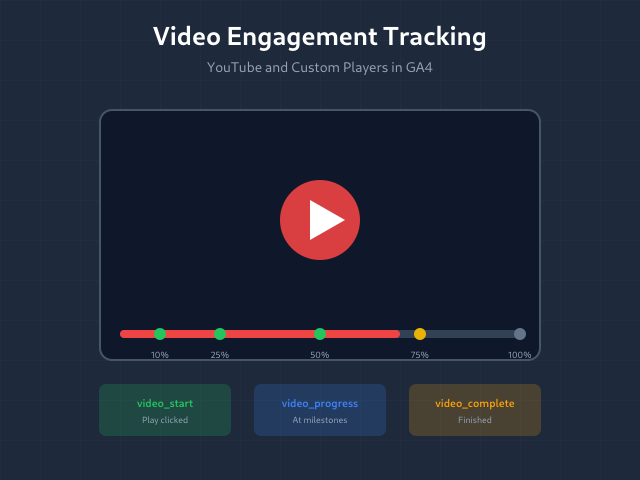
Video content drives engagement, but without tracking, you’re blind to what actually works. Did viewers watch 10 seconds or 10 minutes? Did they skip to the end? Did the video drive conversions? Video engagement tracking answers these questions.
GA4 handles YouTube embeds automatically. Custom video players need manual setup. This guide covers both — from enabling built-in tracking to implementing custom events for any video player.
What Video Metrics Matter?
Not all video interactions are equal. Focus on metrics that indicate genuine engagement:
| Metric | What It Measures | Why It Matters |
|---|---|---|
| Video Start | User clicked play | Initial interest in content |
| Progress (25/50/75%) | Percentage watched | Engagement depth |
| Video Complete | Reached the end | Full content consumption |
| Pause | User paused playback | Taking notes or distracted |
| Seek | User skipped forward/back | Finding specific content |
Progress milestones (25/50/75/100%) matter most. They show whether viewers engage with the full video or drop off early.
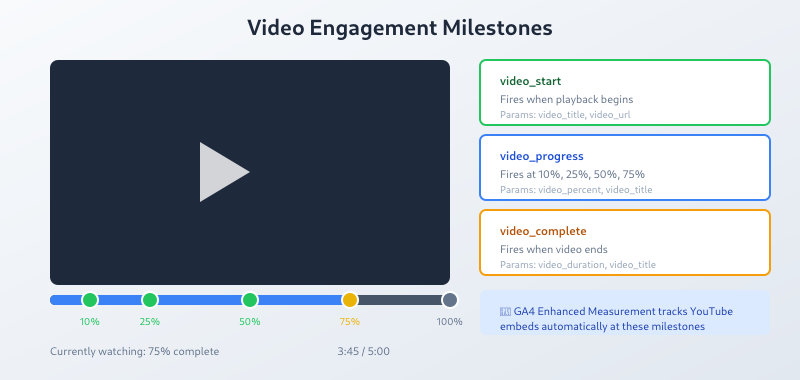
YouTube Video Tracking in GA4
GA4’s Enhanced Measurement includes built-in YouTube tracking. It works automatically for embedded YouTube videos using the standard iframe embed code.
Enabling YouTube Tracking
- Go to GA4 Admin → Data Streams
- Select your web stream
- Click Enhanced measurement settings (gear icon)
- Expand “Video engagement”
- Ensure it’s enabled
What GA4 Tracks Automatically
With Enhanced Measurement enabled, GA4 fires these events for YouTube embeds:
| Event Name | Trigger | Parameters |
|---|---|---|
video_start |
Video begins playing | video_title, video_provider, video_url |
video_progress |
10%, 25%, 50%, 75% | video_percent, video_current_time |
video_complete |
Video reaches end | video_title, video_duration |
Requirements for Auto-Tracking
YouTube tracking only works when:
- Videos use the standard YouTube iframe embed
- The
enablejsapi=1parameter is present (GA4 adds this automatically) - Videos aren’t loaded dynamically after page load without proper initialization
If your YouTube embeds use custom players or are loaded via JavaScript, you may need GTM implementation instead.
Custom Video Player Tracking with GTM
For Vimeo, Wistia, HTML5 video, or any non-YouTube player, you need custom tracking through Google Tag Manager.
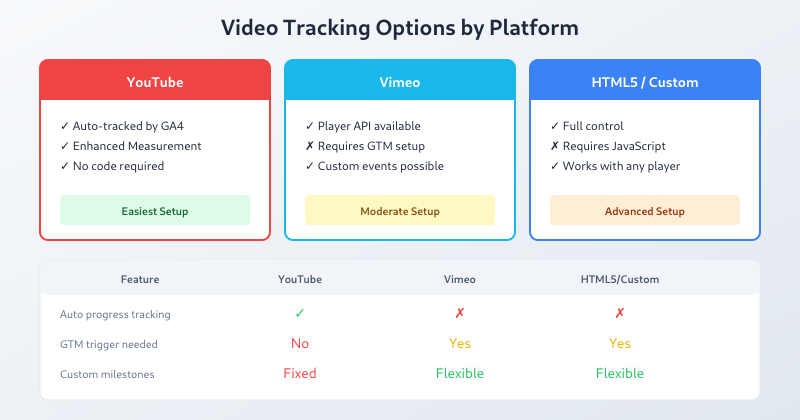
HTML5 Video Tracking
HTML5 <video> elements fire JavaScript events you can capture with GTM.
Step 1: Create Custom Event Trigger
- In GTM, go to Triggers → New
- Select “Custom Event” as trigger type
- Event name:
video_play - Create similar triggers for:
video_pause,video_progress,video_complete
Step 2: Add Data Layer Push Code
Add this JavaScript to your site (or via GTM Custom HTML tag):
document.querySelectorAll('video').forEach(function(video) {
  var videoTitle = video.getAttribute('data-title') || 'Untitled Video';
  var tracked = {25: false, 50: false, 75: false};

  video.addEventListener('play', function() {
    dataLayer.push({
      'event': 'video_play',
      'video_title': videoTitle,
      'video_url': video.currentSrc
    });
  });

  video.addEventListener('pause', function() {
    dataLayer.push({
      'event': 'video_pause',
      'video_title': videoTitle,
      'video_percent': Math.round((video.currentTime / video.duration) * 100)
    });
  });

  video.addEventListener('ended', function() {
    dataLayer.push({
      'event': 'video_complete',
      'video_title': videoTitle,
      'video_duration': Math.round(video.duration)
    });
  });

  video.addEventListener('timeupdate', function() {
    var percent = Math.round((video.currentTime / video.duration) * 100);
    [25, 50, 75].forEach(function(milestone) {
      if (percent >= milestone && !tracked[milestone]) {
        tracked[milestone] = true;
        dataLayer.push({
          'event': 'video_progress',
          'video_title': videoTitle,
          'video_percent': milestone
        });
      }
    });
  });
});
Step 3: Create GA4 Event Tags
For each video event, create a GA4 Event tag:
- Event Name: Use the dataLayer event name (
video_play, etc.) - Parameters: Map
video_title,video_percent,video_duration
Vimeo Tracking
Vimeo provides a Player API. The implementation pattern is similar to HTML5:
- Load Vimeo Player API:
https://player.vimeo.com/api/player.js - Initialize player instances
- Attach event listeners for play, pause, progress, ended
- Push events to dataLayer
Vimeo fires progress events at fixed intervals, so you’ll need to calculate percentage milestones manually.
Wistia Tracking
Wistia has built-in analytics, but for GA4 integration:
- Use Wistia’s JavaScript API
- Bind to
play,pause,percentwatchedchanged,endevents - Push to dataLayer with video metadata
Wistia’s percentwatchedchanged event fires continuously, so implement threshold logic to avoid event spam.
Video Tracking Data in GA4
Finding Video Reports
Video events appear in several places:
- Realtime → Events: See video events as they fire
- Engagement → Events: Aggregate video event counts
- Explore: Build custom reports with video dimensions
Key Dimensions and Metrics
| Dimension | Description | Use Case |
|---|---|---|
| video_title | Name of the video | Compare engagement across videos |
| video_percent | Progress milestone reached | Identify drop-off points |
| video_duration | Total video length | Correlate length with completion |
| video_provider | YouTube, Vimeo, etc. | Compare platform performance |
Building a Video Engagement Report
In GA4 Explore:
- Create Free Form exploration
- Rows: video_title
- Columns: video_percent (25, 50, 75, 100)
- Values: Event count
- Filter: Event name = video_progress or video_complete
This shows completion funnel for each video — where viewers drop off.
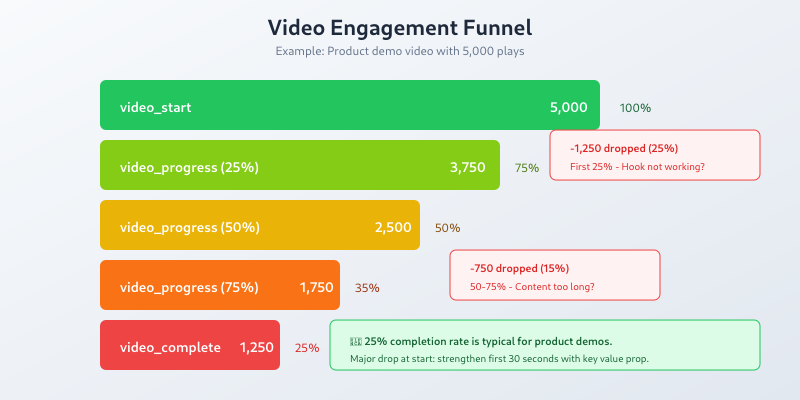
Video Tracking Best Practices
1. Use Consistent Event Names
Whether using Enhanced Measurement or custom tracking, stick to GA4’s standard names:
video_startvideo_progressvideo_complete
This ensures compatibility with GA4’s built-in video reporting. Print the GA4 Enhanced Measurement cheatsheet for a quick reference of all standard event names and parameters.
2. Include Video Metadata
Always pass:
video_title— Identifies the specific videovideo_url— Useful for debugging and detailed analysisvideo_duration— Context for completion rates
3. Track Progress Milestones, Not Every Second
Firing events every second creates data bloat. Use standard milestones (10%, 25%, 50%, 75%) with completion at 100%.
4. Handle Autoplay Carefully
Autoplay videos fire video_start without user intent. Consider:
- Filtering autoplay starts in analysis
- Adding an
autoplay: trueparameter to distinguish - Only counting progress events as true engagement
5. Test Before Deploying
Use GTM Preview mode and GA4 Debug View to verify:
- Events fire at correct thresholds
- Video metadata passes correctly
- No duplicate events on replay
Common Video Tracking Issues
Stuck on a video tracking problem? The Fix My Tracking tool covers Enhanced Measurement issues, duplicate events, and GTM tags not firing.
YouTube Events Not Firing
Causes:
- Enhanced Measurement not enabled
- YouTube embed missing JS API parameter
- Video loaded dynamically without initialization
Fix: Check embed code includes enablejsapi=1. Verify Enhanced Measurement is active.
Duplicate Events
Causes:
- Multiple tracking scripts running
- Progress events not deduplicated
Fix: Use flags to track which milestones already fired. Check for conflicting GTM tags.
Missing Video Title
Causes:
- Video element lacks title attribute
- YouTube API not returning metadata
Fix: Add data-title attributes to video elements. For YouTube, ensure API is properly initialized.
Bottom Line
Video tracking reveals what pageviews can’t — actual content consumption. GA4 handles YouTube automatically through Enhanced Measurement. Custom players need GTM implementation with dataLayer events. Focus on progress milestones (25/50/75/100%) to identify drop-off patterns. The videos with highest completion rates show what content format works for your audience.
