
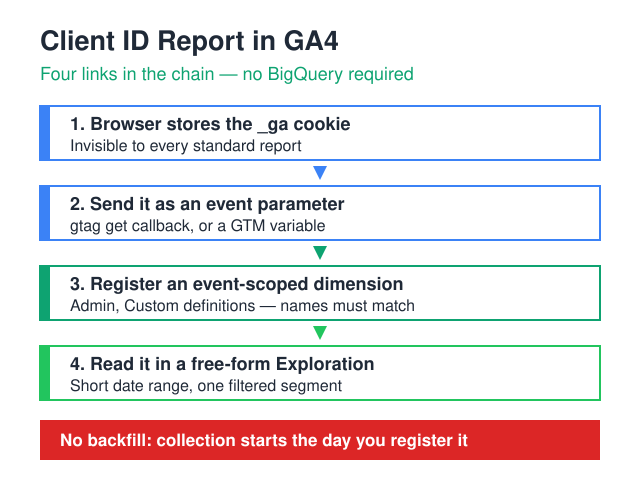
GA4 assigns a Client ID to every browser it tracks, then shows it in exactly zero standard reports. There is no toggle to switch on. To build a Google Analytics Client ID report without touching BigQuery, you need three moves: send the identifier as an event parameter, register that parameter as an event-scoped custom dimension in Admin, then assemble a free-form Exploration with Client ID as the row dimension.
One warning first, because it costs people weeks. Custom dimensions are not retroactive. Data accumulates only from the moment you register the dimension — nothing gets backfilled. Register it, then wait, then report.
Two limits shape the plan. A standard property allows 50 event-scoped custom dimensions and 50 custom metrics, per Google’s GA4 configuration limits, so a slot is worth spending deliberately — and a careless “I’ll just delete it and recreate it” is not a free move. The second limit is patience: processing runs behind collection, so a parameter you can already watch arriving in DebugView will not necessarily surface in Explorations the same afternoon.
Why doesn’t GA4 show Client ID in any report?
Because the reporting interface and the collection layer are two different worlds. GA4’s reports are aggregate and partly modeled — they exist to describe cohorts, channels, and sessions, not individual browsers. The Client ID lives one level below that, in the collection payload, and GA4 never promotes it into the reporting schema on its own.
Before you can move the value, it helps to know where it sits.
| Where it lives | What it’s called there | What you can do with it |
|---|---|---|
| Browser cookie | _ga |
Read it with JavaScript. The identifier is the tail of the cookie value, after the version and depth prefix |
| Outgoing collect request | cid parameter |
Inspect it in the browser Network tab. Read-only — you can see it, not report on it |
| BigQuery export | user_pseudo_id |
Query it directly, join it, keep full history — if you have the export |
| Explorations | Your custom dimension | Group rows by it — but only after you build the whole chain below |
The last row is the point of this guide. The rest is either invisible to reporting or needs infrastructure most site owners don’t run.
Step 1: Capture client_id as an event parameter
GA4 only reports on values you explicitly send as parameters, so the first job is reading the identifier at runtime and attaching it to an event.
With gtag.js, use the asynchronous get command from the gtag.js API reference rather than parsing the cookie yourself. It returns whatever the library actually resolved, which is not always what’s in the cookie:
gtag('get', 'G-XXXXXXXXXX', 'client_id', function (cid) {
  if (!cid) return;
  gtag('event', 'session_identity', {
    visitor_cid: cid
  });
});
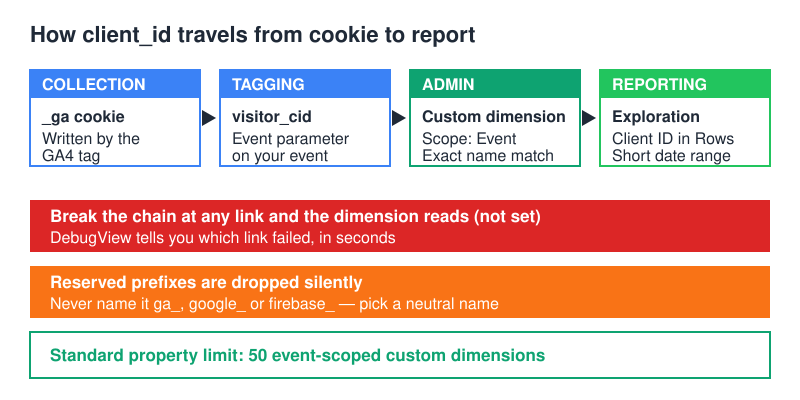
Note the parameter name. Don’t call it ga_client_id — GA4 reserves several prefixes, including ga_, google_ and firebase_, and parameters using them are dropped silently. Pick a neutral name like visitor_cid and use it identically everywhere.
With Google Tag Manager, you have two options. The cleaner one is the same get API wrapped in a Custom JavaScript variable. The quicker one reads the cookie directly:
function () {
  var m = document.cookie.match(/_ga=GA\d\.\d\.(\d+\.\d+)/);
  return m ? m[1] : undefined;
}
Then attach that variable as an event parameter on your GA4 tag.
Here’s the gotcha that burned me the first time I shipped this: on a visitor’s very first hit, the _ga cookie may not exist yet when your variable runs. The regex returns undefined and your report gets a hole exactly where new users should be. Firing order matters — the GA4 configuration tag has to run before anything that reads the cookie. The get callback avoids most of this because it waits for the library instead of racing it.
One more design decision worth making now: which event carries the parameter. Attaching it to a single dedicated event like session_identity keeps the data tidy and your event volume predictable. Attaching it to every event gives you the identifier on every row of every Exploration, at the cost of a parameter on every hit. For debugging one user’s path through a funnel, the second option is worth it. For a report you consult occasionally, the first is cleaner.
Step 2: Register the custom dimension in GA4 Admin
Sending the parameter isn’t enough. Until you register it, GA4 stores the value and gives you no way to see it. Google’s reference on custom dimensions and metrics lists the scopes and how registration works.
- Open Admin, then Custom definitions.
- Click Create custom dimension.
- Set Dimension name to something readable —
Client IDworks. - Set Scope to Event. Not User, not Item.
- Set Event parameter to your parameter name, character for character:
visitor_cid. - Save, then leave it alone and let data accumulate.
Three things go wrong at this stage, and all three are avoidable:
- Case and typos. The parameter name is matched literally.
Visitor_CIDandvisitor_cidare two different things, and the mismatch leaves you with a dimension that’s permanently empty. - Retroactivity. No backfill. Register the dimension today and last month stays blank forever.
- The slot ceiling. Standard properties allow 50 event-scoped custom dimensions. If you’re already at the ceiling, you have to remove an unused definition before you can create a replacement — and removing a definition has its own consequences for historical reporting.
Step 3: Build the report in Explorations
Once data is flowing, go to Explore and start a free-form exploration. Drop your Client ID dimension into Rows, and pick metrics that answer your actual question — event count for debugging, sessions for behaviour, purchase revenue if you’re chasing a specific order.
Now the limitation that catches people after the setup finally works: you cannot add this dimension as a secondary dimension in standard reports. Event-scoped custom dimensions are available in Explorations and the reporting API; the prebuilt reports simply won’t offer it. Our guide to GA4 Explorations covers the workspace itself in more depth.
Why your rows collapse into (other)
Client ID is about as high-cardinality as a dimension gets — one unique value per browser. GA4 has a row limit per report, and once a query exceeds it, everything past the threshold gets bundled into a single (other) row.
Pull ninety days of all users and you’ll get a handful of real rows plus one giant (other) bucket. The fix is discipline, not settings: short date ranges, and a filter down to one segment — one campaign, one converting event, one landing page — before you expect a complete table. This report is a scalpel for investigating specific users, not an export of your entire audience.
What a Google Analytics Client ID report can and can’t do
Set expectations before you spend a dimension slot, because the gap between what people imagine and what this chain delivers is where most of the disappointment lives.
It handles a narrow set of jobs very well. You can trace one visitor’s sequence of events after a support ticket lands, confirming whether the checkout error they described actually fired. You can take a Client ID captured in your own form submission and look up what that browser did before and after converting. You can spot a bot or a scraper hammering one page under a single identifier. You can verify that cross-domain linking preserved the identifier across a handoff, which is far quicker than reading network requests by hand.
It handles other jobs badly, or not at all. It is not a user-level export — the row ceiling sees to that. It is not a person identifier, because one human with a phone, a laptop and a cleared cookie jar produces several Client IDs and GA4 has no way to know they belong together. It is not a substitute for BigQuery when the question involves joins across large tables. And it is not historical: the day you create the dimension is day one, permanently.
Read that list honestly and the tool stops disappointing you. It answers “what did this specific browser do?” and refuses almost everything else.
Common failures and how to fix them
| Symptom | Likely cause | Fix |
|---|---|---|
Dimension shows (not set) |
Parameter never sent, name mismatch, or dimension registered after the data arrived | Confirm the parameter in DebugView, compare names character by character, accept the gap and move on |
| Dimension exists but is completely empty | Scope set to User or Item instead of Event | Create a new dimension with Event scope — scope can’t be edited after creation |
| One person shows several Client IDs | Cleared cookies, a second browser, or Safari’s ITP shortening cookie lifetime | Nothing to fix at the collection layer — use a User ID if you need a stable person-level identifier |
| Client ID changes when a user crosses domains | Cross-domain linking not configured, so the _gl parameter never travels |
Configure cross-domain tracking properly, then re-test the handoff |
| Values differ between subdomains | Cookie written at the wrong domain scope | Check the cookie domain on each subdomain before blaming the tag |
Do the verification step before you trust any of it: open DebugView, fire the event, and confirm the parameter arrives with a real value attached. A report built on a parameter you never actually verified will lie to you quietly for weeks. Our DebugView walkthrough covers the workflow; if the tag itself misbehaves, Fix My Tracking points at the usual suspects.
Consent gaps: the Client IDs you’ll never see
There is a category of missing rows that no amount of tag debugging will recover, and it’s worth naming before you conclude your setup is broken. If a visitor declines analytics storage, the _ga cookie is never written. No cookie means no client_id, which means your parameter has nothing to send.
Google Consent Mode v2 became mandatory in March 2024 for advertisers measuring users in the European Economic Area, and it introduced two signals alongside the existing storage flags: ad_user_data and ad_personalization. Google applies the same requirement to the United Kingdom and Switzerland through its own EU User Consent Policy. That extension is Google’s policy rather than the Digital Markets Act — the DMA does not cover the UK, and conflating the two leads to bad compliance decisions. Fail either and you lose personalisation and remarketing for those users, along with part of the measurement feature set.
The underlying legal question is older than any Google product deadline. The European Data Protection Board’s Guidelines 2/2023 on the technical scope of Article 5(3) of the ePrivacy Directive, adopted on 7 October 2024, make the reasoning explicit: the rule attaches to storing information on, or gaining access to information already stored on, a user’s terminal equipment — regardless of the technique used. Swapping a cookie for local storage or a fingerprint doesn’t move you outside its reach.
The practical consequence for this report is simple. In consent-denied sessions GA4 sends cookieless pings, those hits carry no Client ID, and your dimension shows (not set). That’s the system working as designed, not a tagging bug. Before you spend an afternoon comparing parameter names character by character, check what share of your traffic is declining consent — the answer often explains the hole entirely.
When should you use BigQuery instead?
Here’s how the three approaches compare:
| Custom dimension + Explorations | BigQuery export | Measurement Protocol reconciliation | |
|---|---|---|---|
| Setup effort | Low — tag change plus one Admin entry | Medium — GCP project, linked export, SQL | High — server-side sending and matching logic |
| History depth | Bounded by GA4 data retention | As long as you keep the tables | Whatever your own system stores |
| Cardinality resilience | Weak — (other) on wide queries |
Strong — rows are rows | Strong |
| Cost | None | GCP storage and query charges | Engineering time |
| CRM stitching | Manual, one record at a time | Built for joins at scale | Purpose-built, most work |
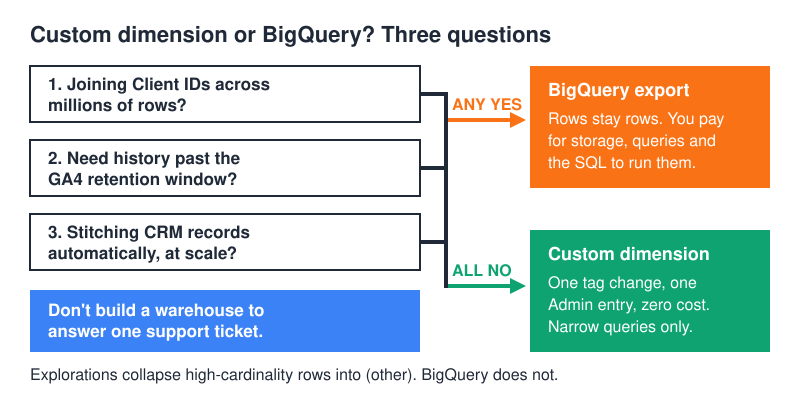
The honest verdict: the custom dimension covers debugging one user’s journey and stitching the occasional record by hand. Move to BigQuery when you’re joining millions of rows, or when you need history beyond the retention window you set in Admin. The BigQuery Export schema shows exactly which fields you’d be querying — user_pseudo_id is the column holding the pseudonymous identifier assigned to a user when they first visit the site. Don’t build a warehouse to answer a support ticket.
There’s a middle path worth knowing about too. Run the custom dimension first, live with it for a month, and note the questions it can’t answer. If that list stays short, you’ve saved yourself a GCP bill. If it grows every week, you now have a concrete requirements document for the export instead of a hunch.
Is client_id personal data?
On its own, it’s a pseudonymous identifier: a random string tied to a browser, meaningless outside your property. It becomes identifying the moment you join it to a CRM record with a name or an email attached.
That distinction sets the rule. Never push personal data — emails, phone numbers, names, order-level customer details — into GA4 as parameters or dimensions. Google publishes best practices for avoiding PII, and its policies mandate that no data Google could recognise as PII is passed to it at all — that’s a rule, not a suggestion. Keep the join on your side: store the Client ID against your own customer record in your own database, and let GA4 hold only the pseudonymous half.
Done that way, the direction of the lookup matters. You start from your own system, where you already know who the customer is, and use the stored Client ID to find their behaviour in GA4. You never start from a GA4 row and try to work out who it belongs to inside Google’s product. The first pattern keeps identity in the system built to hold it. The second smuggles identity into a system that Google’s own policies say shouldn’t have it.
Frequently Asked Questions
Can I see the Client ID for a single user?
Yes, once the dimension is live. Build a free-form Exploration, put Client ID in Rows, and filter to the event, page, or campaign that user touched. For an active session you can also read the value straight from the _ga cookie in your browser’s developer tools.
Why is my Client ID dimension empty?
Three usual causes: the parameter isn’t being sent at all, the parameter name in Admin doesn’t match the name in the tag exactly, or the dimension was registered after the period you’re looking at. Check DebugView first — it tells you within seconds which of the three you’re dealing with.
Does client_id survive a browser update?
Usually, since the value lives in a cookie and updates don’t normally clear cookies. It does not survive clearing site data, switching browsers or devices, or a private window closing. Treat it as a browser identifier with a limited lifespan, not a person identifier.
Can I export the Client ID report to CSV?
Explorations support export, so yes — but the export inherits the same (other) ceiling as the on-screen table. Narrow the date range and segment before exporting, or you’ll download a file that looks complete and isn’t.
Should I use Client ID or User ID?
Use both, for different questions. Client ID identifies a browser and works for every visitor, logged in or not. User ID identifies a person across their devices, but only exists for authenticated sessions where you can supply the value yourself. If you need to follow one browser through a bug, Client ID is the right tool. If you need to follow one customer across a phone and a desktop, only a User ID will do it.
The Bottom Line
A Google Analytics Client ID report isn’t a feature you enable; it’s a chain you build. Send the identifier as an event parameter with a non-reserved name, register it as an event-scoped custom dimension with the name matched exactly, then read it in a free-form Exploration over a short date range. Verify in DebugView before you trust a single row, and remember the dimension only starts collecting the day you create it — so create it today, even if the report itself can wait. Expect gaps where consent was declined, keep the report for pinpoint investigation and the occasional record stitched by hand, and when the questions turn into joins across millions of rows, that’s when BigQuery earns its cost.