
Cross-domain tracking is the practice of stitching one user’s journey together when they navigate between two different domains on the same device — for example, from shop.example.com to checkout.payments.com. By default, Google Analytics 4 treats those two pageviews as two separate sessions belonging to two separate users, because GA4’s identifier (client_id) lives in a first-party cookie that browsers refuse to share across domains. Cross-domain tracking fixes that by passing the client_id through the URL using a parameter called _gl. This guide covers what cross-domain tracking is, the default GA4 problem, how the _gl parameter works, setup in GA4 Admin and GTM, the difference between cross-domain and cross-device, common scenarios, validation in DebugView, pitfalls like referral exclusions, and when you don’t need it at all.
What Cross-Domain Tracking Is
Cross-domain tracking preserves a single GA4 session and a single client_id when a user moves between two distinct domains in the same visit. Without it, the destination domain has no way to know that the arriving visitor is the same person who was just on the source domain. The browser will not share cookies between, say, example.com and partner.io — that’s a fundamental rule of the web’s same-origin security model.
The point of cross-domain tracking isn’t to reach across the cookie boundary. It’s to carry the identifier through the URL as the user clicks the link, so the next domain can rebuild the same first-party cookie on its side. When that happens, GA4 sees one continuous user record instead of two strangers.
The Default GA4 Problem — A New Session on Every Hop
Run a simple test: send a user from siteA.com to siteB.com with no cross-domain configuration. Open GA4 Realtime. You will see two users — not one. You will also see siteA.com appear in the Traffic acquisition report on siteB.com as a referral, which is the wrong story entirely.
This breaks several things at once:
- User counts inflate. Every domain hop creates a fresh user. A simple two-domain checkout doubles your reported audience.
- Attribution collapses. The original UTM source attached to the first session is lost when the second session starts. The campaign that brought the user in gets no credit for the conversion.
- Funnels look broken. Cart abandonment on one domain looks like never-converted users instead of the same users who finished checkout next door.
- Session-scoped events split. Anything you track at the session level — first-touch source, landing page, engagement time — resets in the middle of the journey.
The fix is to teach GA4 that these domains are part of the same property and to decorate outbound links between them with the _gl parameter.
How GA4 Cross-Domain Tracking Works — The _gl URL Parameter
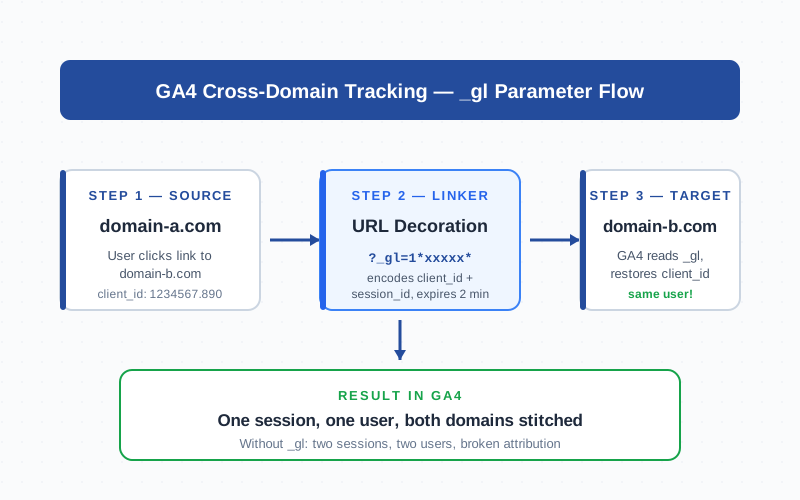
When cross-domain tracking is configured, the GA4 tag (gtag.js or GTM) installs a linker. The linker watches for clicks on links pointing to listed domains and rewrites the URL on the fly. A link that originally read https://checkout.example.io/cart becomes https://checkout.example.io/cart?_gl=1*1abc23d*_ga*MTIzNDU2Nzg5LjE3MDk4MjMwMDA. just before navigation.
The _gl value is a Base64-style encoding of the _ga cookie (client_id + timestamp), the GA4 session identifier, and a short integrity hash. It expires roughly two minutes after generation, which is a deliberate anti-replay measure — it cannot be copy-pasted into bookmarks or shared across users.
On the destination domain, the GA4 tag runs the linker in reverse: it reads _gl from the URL, decodes the client_id, and writes a fresh _ga cookie on its own first-party scope. From that moment forward, both domains report the same client_id and GA4 stitches their events into a single user with one continuous session.
Setup in GA4 Admin — Configure Tagging Settings
The GA4 UI has a built-in cross-domain configurator that works for sites using gtag.js directly. Navigate to Admin → Data Streams → [Your Web Stream] → Configure tag settings → Configure your domains. Here you list every domain that should be treated as part of the same property.
The minimum setup is three steps:
- Open Configure your domains. Click Add condition.
- Add each domain. Use Match type: Contains and enter the domain root (e.g.,
example.com). Repeat for every domain you want stitched. Subdomains of an already-listed apex domain don’t need separate entries. - Save. The change deploys instantly to all properties using your gtag snippet.
Refer to Google’s official walkthrough for screenshots and edge cases: Set up cross-domain measurement.
Setup in GTM — Auto-Link Domains
If you deploy GA4 through Google Tag Manager — and most production sites do — the configuration lives on the GA4 Configuration tag, not in the GA4 UI. Open the tag, expand Fields to set (or Configuration settings on newer GTM versions), and add this field:
- Field name:
linker - Field value:
{"domains": ["example.com", "checkout.example.io"]}
Alternatively, on the GA4 Configuration tag itself, look for the Cross-domain tracking section and paste a comma-separated list of domains. Both methods produce the same client-side linker behavior.
Publish the container, and the linker activates on the next page load. Detailed reference: gtag.js linker reference.
Cross-Domain vs Cross-Device vs Subdomain — What Each Solves
Three terms get confused. They look related but solve very different problems and use different mechanisms:
| Concept | Problem | Mechanism | Same device? |
|---|---|---|---|
| Cross-domain | Same person, same device, different domains (siteA.com → siteB.com) | _gl URL linker — passes client_id in URL |
Yes |
| Cross-device | Same person, different hardware (phone → laptop) | User-ID + Google Signals — server-side identity stitching | No |
| Subdomain | Same person, blog.example.com → www.example.com | Already works — first-party cookie on the apex domain | Yes |
Cross-domain is purely a URL trick. Cross-device requires a logged-in user_id or Google Signals to stitch identities server-side. Subdomains need no extra configuration as long as the _ga cookie’s domain attribute is set to the apex (which gtag.js does by default).
Common Cross-Domain Scenarios
Three real-world patterns drive the majority of cross-domain setups:
- Hosted checkout subdomain on a different apex. Your storefront is
shop.example.combut the cart and payment processor live oncheckout.payments.com. Without cross-domain, every purchase looks like a referral from your own shop. - Auth/login on a separate identity provider. Federated SSO redirects users to
auth.identity.commid-flow, then back to your app. The redirect shows up as a self-referral and resets the session. - Partner or affiliate site sending traffic to a co-branded landing page. A partner hosts your campaign at
your-brand.partner.ioand links intoyour-brand.com— both should report as one continuous campaign session.
Other scenarios include localized country domains (brand.de, brand.fr) sharing analytics, support knowledge bases on separate domains (help.zendesk.com), and embedded booking widgets that redirect off-site for confirmation.
Validating Cross-Domain Tracking — DebugView and URL Inspection
Two checks confirm the setup is working. Do both before declaring victory.
1. URL inspection. Open your source domain in a browser. Hover over a link to the destination domain — the status bar should show the original URL (the linker doesn’t rewrite on hover). Now click. The destination URL in the address bar should contain ?_gl=1*... with a long encoded value. If _gl is missing, the linker isn’t installed or the destination isn’t in your domain list.
2. DebugView session check. Enable debug mode (browser extension or ?gtm_debug=1), navigate from source to destination, and watch GA4 DebugView in real time. You should see one continuous user with events from both domains and a single session_start. If you see two session_start events or two different client_id values, the _gl handoff failed.
Realtime reports also work for spot-checks — Users by event should show one user, not two, after a cross-domain hop. For deeper traffic-source debugging see Google’s DebugView documentation.
Common Cross-Domain Pitfalls
Even with the linker installed, four things commonly break cross-domain tracking:
- Missing referral exclusions. Even with cross-domain configured, the destination domain may still record the source as a referral if it’s not in the Unwanted referrals list under Admin → Data Streams → Configure tag settings → List unwanted referrals. Add every cross-domain participant to that list.
- Mixed protocols (http → https). Browsers strip query parameters on protocol downgrades. If any link goes from HTTPS to HTTP, the
_glparameter disappears mid-flight. Force HTTPS everywhere. - Server-side redirects that drop query strings. Some load balancers and CMSes strip
?_gl=...from incoming URLs. Test with the URL inspection step above. If the destination URL never has_gl, your redirect chain is the culprit. - Cookie scope conflicts. If your destination domain manually sets the
_gacookie’s domain attribute to a non-default value (or uses a different GA4 property), the linker can write the cookie but GA4 ignores it. Use the same Measurement ID across all stitched domains.
Other gotchas: cross-origin iframe embeds (use postMessage patterns, not the linker), single-page-app navigations that bypass full page loads (the linker fires on click, not on history-API transitions), and ad-blockers that strip query parameters they suspect are tracking pixels.
When You DON’T Need Cross-Domain Tracking
Most teams over-configure cross-domain. You don’t need it in any of these cases:
- Subdomains of the same apex domain.
blog.example.comandshop.example.comshare the_gafirst-party cookie automatically. No_glneeded. - Server-to-server tracking. If your backend forwards events via the Measurement Protocol with a stable
client_id, the URL linker is irrelevant — you’re stitching server-side. - Single-domain SPAs with API calls to other origins. Background fetch requests don’t break sessions. Only navigation between domains does.
- External link clicks you intentionally treat as exits. A link to a partner site you don’t own should remain a referral exit, not a stitched session.
- Single-property logged-in users. If every domain you control already collects a stable
user_id, GA4’s User-ID identity space stitches them server-side regardless of the URL linker. Cross-device covers cross-domain in that case.
Cross-domain tracking is a tool for one specific problem: same device, different domains, no logged-in user. Configure it where that pattern actually exists in your traffic. Anywhere else, leave it off and let the simpler defaults work.
Frequently Asked Questions
What is the _gl parameter in URLs
_gl is a short-lived URL parameter that GA4’s linker injects into outbound cross-domain links. It encodes the client_id plus a session token and a timestamp, expiring after roughly two minutes to prevent replay. The destination domain reads _gl on arrival and rebuilds the same _ga first-party cookie locally.
Do I need cross-domain tracking for subdomains
No. Subdomains under the same apex (blog.example.com, shop.example.com) share the _ga cookie automatically because gtag.js scopes it to the apex domain by default. Cross-domain tracking is only needed when domains have different apex roots.
How do I check if cross-domain tracking is working
Click a cross-domain link and inspect the destination URL — it should contain ?_gl=1*.... Then open DebugView and confirm a single user with events from both domains and only one session_start. Two session starts means the handoff failed.
What is the difference between cross-domain and cross-device tracking
Cross-domain stitches the same browser on the same device across two different domains using a URL parameter. Cross-device stitches the same person across multiple devices (phone, laptop) using a user_id from your login system or Google Signals. Different problems, different mechanisms.
Why does my second domain still show up as a referral
Configuring cross-domain tracking does not automatically exclude referrals. You also need to add the source domain to the Unwanted referrals list under Admin → Data Streams → Configure tag settings → List unwanted referrals. Without this, GA4 still attributes a self-referral.
Does cross-domain tracking work with iframes
Not natively. The _gl linker runs on link clicks, not iframe loads. For cross-origin iframes you need a postMessage-based pattern that explicitly passes the client_id from parent to child, then writes a matching cookie on the iframe’s domain. Most teams skip this and rely on user_id instead.
How long does the _gl parameter remain valid
Around two minutes. The timestamp inside _gl invalidates after that window so users cannot bookmark or share decorated URLs and inadvertently impersonate another client_id. Long-tail traffic from old emails or shared links arrives without _gl and starts a fresh session — by design.
For a step-by-step implementation including the linker_domains GTM field and DebugView verification, see the full guide: GA4 Cross-Domain Tracking: Setup and the _gl Parameter Explained.
Related Terms
- Cross-device tracking — joining sessions across phone, tablet, and desktop for the same person
- client_id — GA4’s per-browser identifier that the
_glparameter carries between domains - Cookies — the storage mechanism behind
_gaand most analytics identifiers - First-party cookie — the scope that limits cookies to a single domain and forces the
_glworkaround - Session — the GA4 grouping of events that cross-domain tracking keeps continuous
- Referrer — the source domain header that gets misreported without referral exclusions
- Data stream — the GA4 configuration object where domain settings live
- Measurement Protocol — the server-side alternative when client-side cross-domain isn’t viable
