
GA4 cross-domain tracking has one job: make sure a user who starts on siteA.com and finishes on siteB.com shows up as one person in your reports — not two strangers from different traffic sources. The mechanism is a URL parameter called _gl. Everything about cross-domain configuration is either “getting _gl onto outbound links” or “getting the destination domain to read it correctly.”
This guide goes deeper than the setup steps. You’ll understand exactly what the _gl parameter in URL contains, how GA4 generates and validates it, why referral exclusions are separate from the linker configuration, and how to verify the whole chain is working from DebugView — not just by hoping the URL looks right.
Why GA4 Needs a URL Parameter to Track Across Domains
Browsers enforce same-origin security: a cookie set by siteA.com is invisible to siteB.com. GA4’s user identifier — the client_id — lives in a first-party cookie. When a user navigates from one domain to another, the destination has no access to the origin’s cookie and starts a fresh session with a new client_id.
The consequence is attribution collapse. The original UTM source from the first session disappears. The cross-domain hop looks like a referral from siteA.com, polluting your Traffic acquisition report. Any conversion on the destination gets credited to the wrong source or to Direct.
The fix is to pass the client_id through the URL as a query parameter. That parameter is _gl. The destination domain reads it, validates it, and writes the same client_id into its own cookie — so GA4 sees continuous session data under one user record.
This approach is fundamentally different from what’s needed for subdomains. GA4 shares first-party cookies across shop.example.com, blog.example.com, and example.com automatically — no configuration needed. Cross-domain tracking is only for genuinely separate registrable domains.
Inside the _gl Parameter
The _gl value is a base64-encoded, structured payload. It looks opaque in the URL but carries distinct pieces of information. The format Google uses in its documentation follows the pattern _gl=1*… (for example, ?_gl=1*abcde5*). The exact internal encoding is not publicly documented and may evolve.
| Component | What it holds | Purpose |
|---|---|---|
| Version prefix | Linker format identifier (e.g., 1*) |
Allows Google to change encoding without breaking existing implementations |
| Encoded payload | client_id + session_id + other hit-scoped data | Carries the identity the destination domain needs to rebuild the cookie |
| Timestamp | Unix timestamp of when the link was decorated | Used for expiry validation — stale _gl values are rejected |
| Checksum | Hash of payload + timestamp + origin domain | Prevents tampering; different origin domain = checksum mismatch = rejected |
The _gl parameter is short-lived (Google does not publicly document the exact expiry window). This matters for testing: if you copy a decorated URL from your browser and paste it into an incognito tab after some time has passed, the _gl may be rejected and the destination will start a new session. Test with fresh clicks on live links, not copy-pasted URLs.
The checksum also means _gl values are non-transferable between domains. A linker parameter generated from siteA.com will only be accepted by domains that siteA.com has been configured to link to. Manually editing the parameter breaks the checksum and forces a new session.
Configure Your Domains in GA4 Admin
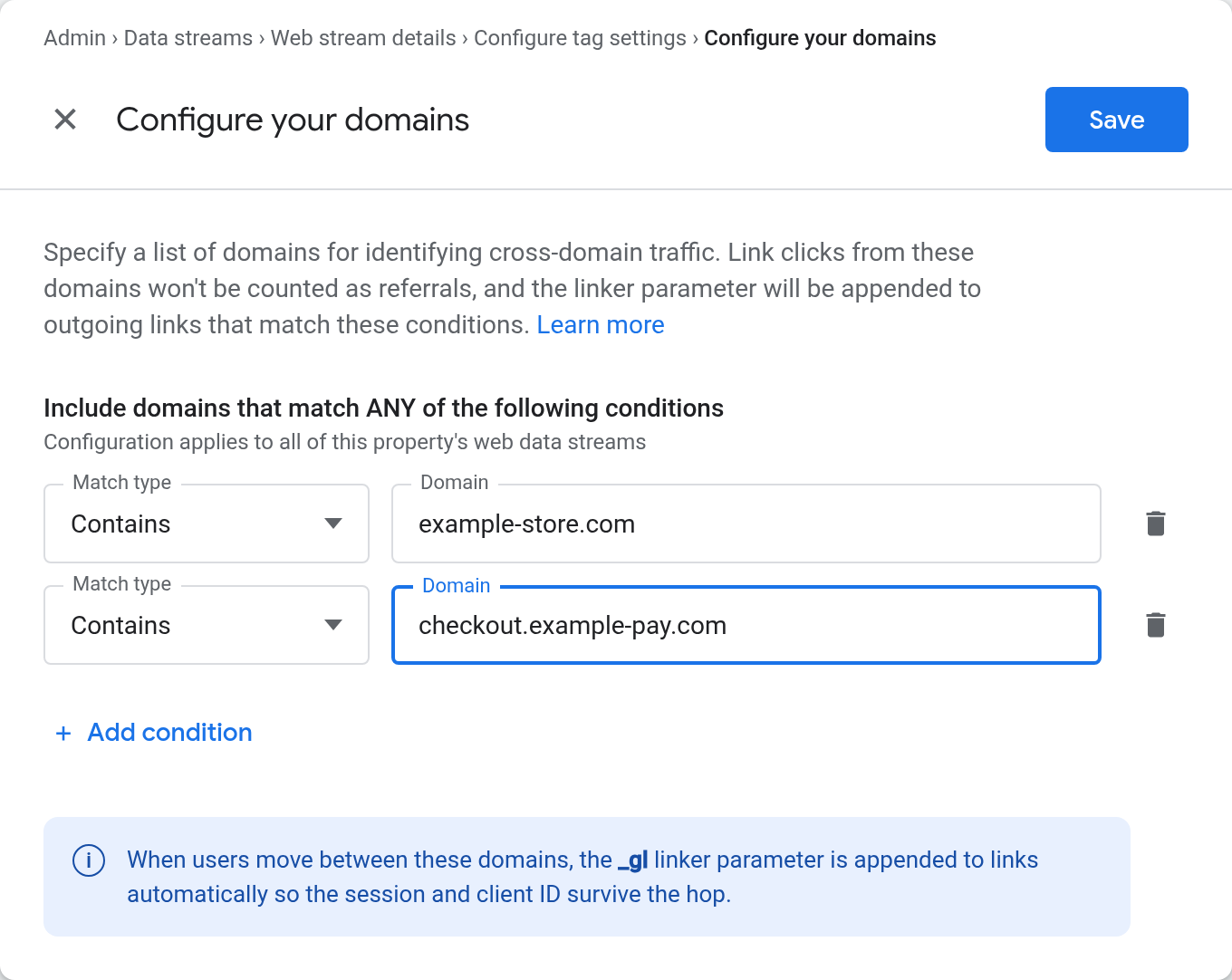
Every cross-domain configuration starts at the same place: GA4 Admin → Property → Data Streams → select your stream → More Tagging Settings → Configure your domains. Without this step, no amount of GTM configuration will produce a working linker. This is where you tell GA4 which domains belong to the same journey.
Add both the origin and destination domains. If you have a marketing site at example.com sending traffic to a checkout at payments.io, both go into this list. You can add domains by full domain, subdomain pattern, or regex. The most common entry is the registrable domain without a subdomain prefix — GA4 matches all subdomains automatically when you add the apex domain.
Three ways to specify domains in the UI:
- Contains — matches any URL containing that string. Use for simple cases (
payments.io). - Begins with — useful for restricting to specific subdomains (
checkout.example.com). - Matches regex — use when you have multiple checkout domains or localised variants (
(checkout|shop).(example|meinshop).(com|de)).
Once you save, GA4’s gtag.js will automatically decorate qualifying outbound links with _gl on click. No additional JavaScript code is required if you’re using the GA4 Config tag deployed directly without GTM. Settings take effect as Google’s tag infrastructure picks them up — timing is not guaranteed to any specific window.
GTM Setup: linker_domains and the Admin Domain List
The definitive setup method — whether you deploy via GTM or directly — is the Admin → Data Streams → Configure your domains panel described above. That configuration is read by GA4’s tag regardless of deployment method.
If your GA4 Config tag is deployed through Google Tag Manager, some GTM-specific community configurations also add a linker_domains field in the GA4 Configuration tag’s “Fields to Set” section. In practice, the Admin domain list is the canonical and complete configuration; linker_domains in GTM Fields to Set is a legacy community approach that predates the current Admin UI. Start with the Admin panel. If you encounter an existing GTM implementation that already uses linker_domains, it can coexist without conflict.
Regardless of method, the destination domain needs the same container (or its own GA4 Config tag) to read the _gl value correctly. The linker appending _gl on the origin is only half the chain — the destination needs a GA4 tag to consume it.
Cross-Domain Setup: Configuration Checklist
| Step | GA4 Admin (any deployment) | GTM-specific |
|---|---|---|
| 1. Register domains | Admin → Data Streams → More Tagging Settings → Configure your domains. Add both origin and destination. | Same — required regardless of GTM. |
| 2. Deploy GA4 on destination | Ensure gtag.js fires on the destination domain. | Publish updated GTM container to destination domain. |
| 3. Referral exclusion | Admin → Data Settings → Referral Exclusion List. Add origin domain on destination property. | Same — add exclusion in GA4 Admin, not in GTM. |
| 4. Verify | Click cross-domain link. DebugView: same client_id on both domains. | Same verification steps. |
Referral Exclusions: A Separate Problem from the Linker
Setting up _gl solves identity continuity — the user stays one person across the domain hop. It does not automatically fix your traffic attribution. You still need to tell GA4 not to create a new session when it sees a referral from a domain you own.
Without a referral exclusion, this happens: a user arrives from Google Ads to siteA.com, the _gl linker correctly hands off the client_id to checkout.siteB.com, but GA4 on siteB sees the referrer header (siteA.com), treats it as a new traffic source, and resets the session. The user is now one person — but they’ve lost their Google Ads attribution.
To exclude referrals from siteA.com: GA4 Admin → Property → Data Settings → Data Filters — or through the older path, Property → Tracking Info → Referral Exclusion List. Add siteA.com to the list for the siteB property. The session then continues under the original GA4 source rather than restarting.
Verifying Cross-Domain Tracking Is Working
Don’t rely on seeing ?_gl= in the URL bar — that confirms decoration, not successful reading. The proper verification chain uses GA4 DebugView:
- Open GA4 and navigate to Admin → DebugView.
- On
siteA.com, open Chrome DevTools and enable GA4 debug mode (install the Google Analytics Debugger extension, or append?gtm_debug=1to the URL if using GTM). - Note your client_id in DebugView — it appears at the top of the device/user panel on the right side.
- Click the cross-domain link to
siteB.com. DebugView should continue showing events without creating a new debug device entry. - If a new device entry appears, cross-domain tracking is not working — the client_id changed on the hop.
Secondary check: in GA4 Reports, under Traffic acquisition for the destination property, siteA.com should not appear as a referral source. If it does, referral exclusion is missing or misconfigured.
| Symptom | Likely cause | Fix |
|---|---|---|
_gl not in destination URL |
Domain not listed in Configure your domains (Admin) | Add both domains to the GA4 domain list |
| New client_id on destination (DebugView) | Destination GA4 tag not reading _gl — wrong container or missing GA4 tag |
Publish updated GTM container to destination; verify GA4 Config tag fires |
| siteA appears as referral in reports | Missing referral exclusion on destination property | Add siteA.com to Data Settings → Referral Exclusion List |
_gl rejected silently (no stitch) |
Parameter expired or checksum mismatch from URL rewriting | Verify no URL rewriting on destination; test with fresh click not copy-pasted URL |
_gl stays in URL after page loads |
Missing or non-firing GA4 tag on destination | Confirm GA4 Config tag fires on destination; check for JS errors blocking tag |
Do You Even Have a Cross-Domain Problem?
The setup overhead is worth it in specific cases. It adds unnecessary complexity in others. Here’s the decision:
You need cross-domain tracking when:
- A user completes a journey across two or more registrable domains you own — the classic marketing site → checkout case.
- Your site embeds or redirects through a third-party payment processor on a different domain (
stripe.com,checkout.paypal.com) and you need the originating session to own the conversion. - Multiple brand domains share one GA4 property and users navigate between them.
- Localised domains (
example.de,example.fr) track together in a single property.
You do not need cross-domain tracking when:
- You’re moving users between subdomains only —
shop.example.com→blog.example.com. GA4 shares cookies at the registrable domain level automatically. Adding cross-domain config for subdomains often breaks more than it fixes. - You want to track users across devices. That’s cross-device tracking, which uses User ID or Google Signals — completely different mechanism.
- You’re tracking a third-party embed like a booking widget that stays within an iframe on your domain. The parent domain’s cookie applies.
Cross-Domain vs Cross-Device: The Difference That Matters
These are frequently confused because both involve “tracking users across boundaries.” They solve different problems with different tools.
| Aspect | Cross-Domain Tracking | Cross-Device Tracking |
|---|---|---|
| Problem solved | Same user, same device, different domain | Same user, different devices (phone + laptop) |
| Mechanism | _gl URL parameter carrying client_id |
User ID (logged-in) or Google Signals (probabilistic) |
| Requires login? | No | Yes (User ID) or Google account (Signals) |
| GA4 setup path | Admin → Data Streams → Configure your domains | Admin → Property → Reporting Identity |
| Works on? | Any browser, any user | Logged-in users or Google account holders |
If your checkout requires account creation, you can layer both: cross-domain tracking handles the pre-login hop, User ID takes over after login. In my experience implementing both on e-commerce properties, the client_id handoff via _gl is the more reliable foundation — it has no dependency on user behavior beyond clicking a link.
Relationship to the Existing Cross-Domain Tracking Setup Guide
The existing guide on cross-domain tracking: when and how to set it up covers the decision framework and initial configuration steps. This article focuses specifically on the _gl parameter mechanics, the domain configuration in GA4 Admin, and the verification sequence — the pieces most tracking implementations skip and then wonder why the data is still wrong.
For context on what GA4 does with the session data after the cross-domain handoff, the cross-domain tracking glossary entry covers how GA4’s linker decorates links and how session attribution flows downstream into reporting.
Where to Go Next
Configuration is three independent pieces: domain list in GA4 Admin, a GA4 tag on the destination, referral exclusions on the destination property. None substitute for the others. The most common failure mode isn’t misconfiguration — it’s skipping DebugView verification. Trust the client_id, not the URL bar.
- Fix My Tracking decision tree — Cross-Domain Issues branch for step-by-step diagnosis when the linker still isn’t stitching
- Cross-domain tracking: when and how to set it up — decision framework and initial configuration
- Cross-domain tracking glossary — how session attribution flows downstream after the handoff
- DebugView glossary — reading the event stream and confirming client_id continuity
- Client ID glossary — what the identifier is and how GA4 uses it