
Cross-platform tracking measures the same user across the web browser, an iOS app, and an Android app — all flowing into a single GA4 property. Done correctly, a tap on the iPhone, a click in Chrome, and a screen view on a Pixel collapse into one User journey. Done poorly, you triple-count the same person and your funnels lie. This guide walks through GA4’s data model, Firebase + GA4 wiring, the user_id that ties everything together, and the BigQuery export schema you get on the back end.
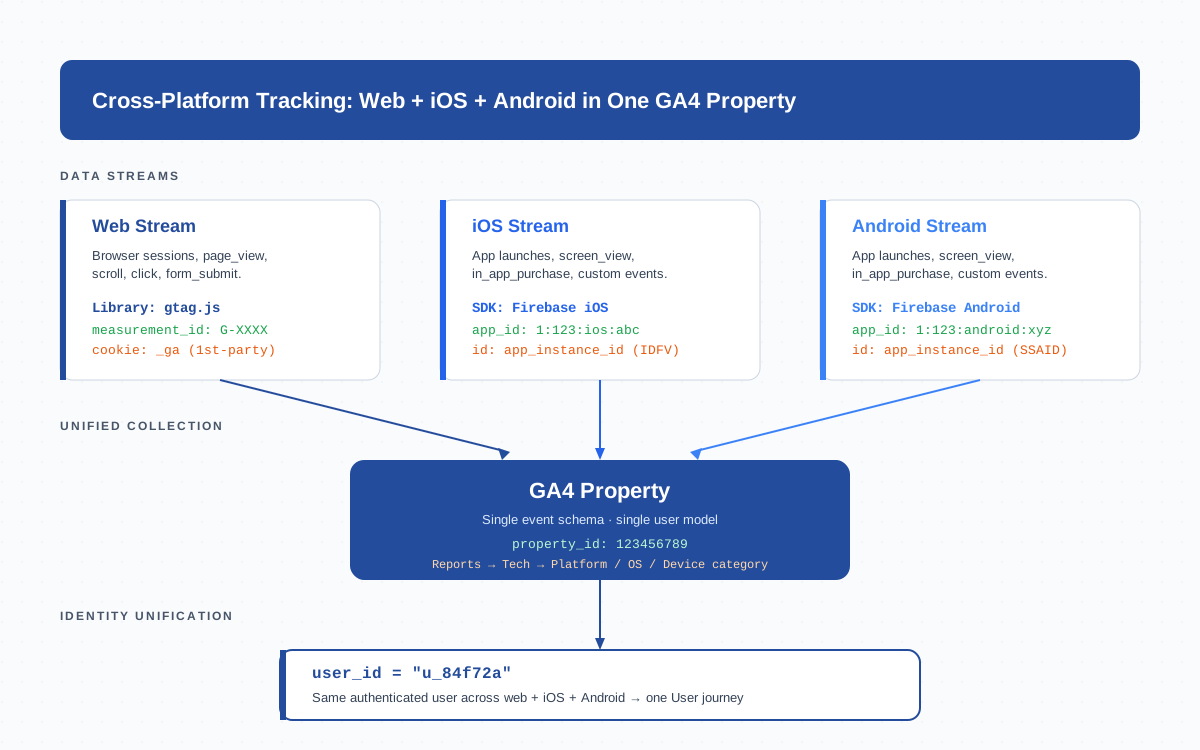
What Cross-Platform Tracking Is
Cross-platform tracking is the practice of capturing user behavior across different runtimes — a website, an iOS app, and an Android app — and routing all of it into one analytics property so you can analyze the user as a single entity. The platform boundary is what matters here: a browser tab and a native iOS app are two different operating environments, with two different SDKs, two different identifiers, and two different default events. GA4 is built to merge them.
This is distinct from cross-domain tracking, which only deals with two web domains, and from cross-device tracking, which deals with the same person on different hardware (laptop and phone, both browsers). Cross-platform sits a level higher: it crosses runtime types, and it requires a unified data model on the collection side.
The problem cross-platform tracking solves is fragmentation. Without it, your iOS app and your website each report their own users, their own conversions, and their own revenue. A single buyer who browses on the website at lunch and completes the purchase in the iOS app at night looks like two strangers. Marketing attribution breaks. Cohort analysis drifts. Lifetime value calculations get cut roughly in half.
GA4’s Unified Data Model — The Foundation
GA4 was rebuilt from the ground up around an event-based schema. Every interaction — a page view, a screen view, a button tap, a purchase — is the same shape: an event name plus a bag of parameters. There are no separate “screenview hits” and “pageview hits” the way Universal Analytics had it. This single schema is what makes cross-platform reporting possible.
When the iOS app fires screen_view with parameters { screen_name: "Cart", screen_class: "CartViewController" }, and the web app fires page_view with parameters { page_title: "Cart", page_location: "https://example.com/cart" }, GA4 treats them as siblings inside the same event table. You can build one funnel that uses both. You can attribute one conversion to either source.
The user model is similarly unified. Every event carries an app_instance_id (for apps) or a client_id (for web). When the user authenticates, you also send a user_id. GA4 uses these three identifiers in priority order — User-ID first, then Google signals, then device — to merge sessions into a single User.
Data Streams: Web vs iOS vs Android
Inside one GA4 property you create up to three data streams — one per platform. Each stream has its own ID and its own collection library, but they all write into the same property’s event tables.
| Stream type | Library / SDK | Default identifier | Auto-collected events |
|---|---|---|---|
| Web | gtag.js or Google Tag Manager | client_id (in _ga cookie) | page_view, scroll, click, form_start, form_submit, file_download, video_* |
| iOS | Firebase iOS SDK | app_instance_id (per-install UUID) | first_open, session_start, screen_view, app_remove, in_app_purchase |
| Android | Firebase Android SDK | app_instance_id (per-install UUID) | first_open, session_start, screen_view, app_update, in_app_purchase |
The web stream uses the same client_id across browser sessions on one device — that’s what survives in the _ga cookie for two years (unless cleared). The app streams use app_instance_id, which is generated when the user installs the app and persists until uninstall. These two identifier types do not overlap on their own. The browser doesn’t know about the app’s UUID, and vice versa. That is exactly the gap the user_id closes.
One important constraint: each stream is tied to a single platform. You cannot have two iOS streams in one property — Firebase enforces a one-to-one mapping between an iOS bundle ID and a stream. The same holds for Android. For web, you can technically register multiple sites against one stream, but it’s cleaner to give each high-volume site its own stream.
The user_id — True Cross-Platform Unification
The user_id is the only identifier that travels reliably across platforms. It is set by you, the implementer, when a user authenticates — and it should be the same value on web, iOS, and Android. The recommended source is your internal user ID (a hashed primary key from your auth database), never an email or a name.
On the web, you set it through gtag once the user logs in:
gtag('config', 'G-XXXXXXX', {
  'user_id': 'u_84f72a'
});
gtag('set', 'user_properties', { 'plan_tier': 'pro' });
On iOS and Android, you set it through the Firebase SDK after sign-in:
// iOS (Swift)
Analytics.setUserID("u_84f72a")

// Android (Kotlin)
Firebase.analytics.setUserId("u_84f72a")
The same string — u_84f72a — sent from all three platforms is what makes GA4 collapse the three sessions into one User. In Admin → Property Settings → Reporting Identity, choose “Blended” so GA4 will use User-ID first, then signals, then device. Without this setting, you’ll still see fragmented users in some reports.
One critical rule: never send the same user_id for two different real humans. If your hashing function collides, or if you reuse internal IDs, you will permanently merge two users in GA4 and you cannot un-merge them. Test on staging first, with a deterministic hashing function (SHA-256 of the auth user_id is standard).
Firebase + GA4 Integration for Mobile Apps
For iOS and Android, GA4 is not a standalone SDK — it ships as part of Firebase Analytics. To enable cross-platform tracking on mobile, you connect your Firebase project to your GA4 property, and Firebase forwards every event into the GA4 stream.
The setup steps are:
- Create a Firebase project (or use an existing one) at
console.firebase.google.com. - Register your iOS app with its bundle ID and your Android app with its package name. Download the
GoogleService-Info.plistandgoogle-services.jsonconfig files. - In the Firebase project settings, link to GA4. If you don’t have a GA4 property yet, Firebase will offer to create one. If you already have one, link it.
- Add the Firebase SDK to your apps. Initialize it in
AppDelegate(iOS) orApplication.onCreate()(Android). - Verify event flow in GA4 Admin → DebugView within an hour of the first event.
The Firebase SDK auto-collects two dozen events out of the box: session_start, first_open, screen_view, user_engagement, in_app_purchase, plus a handful of ads-related events. Custom events use Analytics.logEvent() with up to 25 parameters per event and a 40-character event name limit.
One subtle caveat: events fired from iOS and Android may be batched and uploaded later (default upload interval is 1 hour on Wi-Fi, longer on cellular). This means cross-platform reports can lag behind web data by up to an hour. For real-time debugging, use FIRDebugEnabled on iOS or adb shell setprop debug.firebase.analytics.app on Android — these flush events instantly to DebugView.
Cross-Platform Reports in GA4
The reports that surface cross-platform behavior live under Reports → User → Tech. The “Tech overview” report breaks every metric down by Platform (web, iOS, Android), Operating System, Device category, Browser, Screen resolution, and App version.
- Tech → Platform — the headline cross-platform breakdown. Active users, Engaged sessions, and Event count split by web / iOS / Android.
- Tech → Platform / device category — adds desktop / mobile / tablet to the cut, useful for spotting where mobile-web competes with the native app.
- User → User attributes → Demographic details — same demographics regardless of platform, since they’re tied to the User and not the device.
- Engagement → Pages and screens — combines web
page_pathand appscreen_nameinto a single ranked list.
Two metrics on these reports deserve attention. Active users is deduplicated across platforms when User-ID is set — a single authenticated user counts once even if they used both web and iOS in the date range. Sessions, on the other hand, are not deduplicated; one user with two app launches and one web visit will show three sessions. That’s intentional — sessions track engagement intensity per platform, while users track unique humans.
For deeper analysis you’ll usually drop into Explore and build a free-form report with Platform as the breakdown dimension and a custom event as the metric. You can layer in attribution dimensions like Source / Medium to see which channel drives cross-platform users vs single-platform users.
Cross-Platform Conversion Paths and Attribution
The most valuable thing cross-platform tracking unlocks is honest attribution. When a user discovers your product through a Google Ad on mobile web, comes back through organic search on desktop, then converts in the iOS app, all three touchpoints belong to the same conversion path — but only if GA4 sees them as one user.
GA4’s Advertising → Attribution → Conversion paths report visualizes this. Each row is a sequence of channel touchpoints leading to a conversion. With cross-platform tracking enabled, the path “Paid Search (web) → Direct (web) → Direct (iOS app)” appears as a real, three-step journey. Without it, you’d see two separate one-step paths and miss the relationship entirely.
The default attribution model is data-driven, which uses ML to assign credit non-uniformly across the path. For cross-platform analysis specifically, switch the comparison to “Linear” or “Time decay” temporarily — these distribute credit more transparently and let you see how much each platform contributes. The official attribution model documentation covers the differences.
One caution: cross-platform attribution only works when User-ID is set before the conversion event. If a user logs in only at checkout, the touchpoints from before login are stitched via Google signals (if available) or device-only — both weaker than User-ID. Push your sign-in prompt earlier in the funnel where possible.
Cross-Platform vs Cross-Domain vs Cross-Device — The Differences
These three terms get used interchangeably in vendor pitches, but they solve different technical problems. Picking the wrong one means you implement the wrong fix.
| Concept | What it solves | Prerequisites | Identifier used |
|---|---|---|---|
| Cross-platform | Web + iOS + Android in one property | One GA4 property, one Firebase project, user_id on all platforms | user_id (primary), app_instance_id + client_id (per stream) |
| Cross-domain | Same user across two web domains (e.g., main site → checkout) | Linker config in gtag, allowed-domains list, first-party cookies | client_id passed via linker URL parameter |
| Cross-device | Same user on laptop browser and phone browser | User-ID set on both, or Google signals enabled | user_id or Google signals |
In practice you often need two of them at once. A typical e-commerce setup needs cross-domain (main site → Stripe checkout) and cross-platform (website + iOS + Android), because users buy on every surface. The two configurations don’t conflict — cross-domain handles the linker on the web stream, cross-platform handles the user_id across all streams. Configure them independently, in that order.
Common Cross-Platform Setup Mistakes
The mistakes I see most often when auditing GA4 setups:
- Separate properties per platform. Some teams create a “website GA4” and a “mobile GA4” property and report on them separately. This permanently blocks unified User reporting. The fix is to consolidate into one property — but historical data cannot be merged retroactively.
- Different
user_idformats per platform. The web sends the raw database ID, iOS sends a hash, Android sends an email. GA4 sees three different users. Pick one canonical hashing function and apply it everywhere beforesetUserID. - User-ID set too late. If you only set
user_idon the checkout page, the entire pre-checkout funnel is split by device fingerprint. Set it the moment a session is authenticated. - Reporting Identity left as “Device-based”. Even with user_id flowing in correctly, GA4 will ignore it for many reports until you switch Reporting Identity to Blended or Observed in Admin.
- Not enabling debug mode during rollout. Mobile events batch; you might think iOS isn’t sending and start over. Always enable Firebase debug mode on a test device for the first week.
- Treating
screen_viewandpage_viewas interchangeable in Explore. They’re separate event names. To build one cross-platform funnel, create a custom eventview_item(or similar) that fires from both web and apps with the same parameters.
The audit pattern I use: pull a known test user’s events from GA4 DebugView, with the user logged in, on all three platforms. The user_id column should show the same string across web, iOS, and Android events. If it doesn’t, the implementation is broken regardless of what reports look like.
BigQuery Export with Cross-Platform Data
The BigQuery export is where cross-platform tracking gets really powerful — you get every event from every platform as raw rows in one set of date-partitioned tables. The export is free for standard properties (with sampling at 1M events/day) and unsampled for GA4 360 properties.
Each daily table is named events_YYYYMMDD and includes events from every stream linked to the property. The platform column (‘WEB’, ‘IOS’, ‘ANDROID’) tells you the source. The user_id field holds your set value. The user_pseudo_id field holds either client_id (for web) or app_instance_id (for apps) — the per-platform identifier.
A common cross-platform query — counting unique users who interacted on more than one platform in the last week:
SELECT user_id,
       COUNT(DISTINCT platform) AS platforms_used
FROM   `project.analytics_123.events_*`
WHERE  _TABLE_SUFFIX BETWEEN '20260421' AND '20260427'
       AND user_id IS NOT NULL
GROUP BY user_id
HAVING platforms_used > 1
ORDER BY platforms_used DESC;
For server-side reconciliation — say, joining GA4 events with your CRM purchases — the user_id in BigQuery is the join key. Make sure it’s the same canonical hash you use in your data warehouse, and you can build attribution reports that go beyond what GA4’s UI offers. The BigQuery export schema documentation lists every column. For events that need server-side enrichment, the Measurement Protocol can backfill into the same property too.
Frequently Asked Questions
Do I need three separate GA4 properties for web, iOS, and Android?
No. The whole point of cross-platform tracking is the opposite — one GA4 property with three data streams inside it. Three properties would prevent unified User reporting and cross-platform conversion paths. Create one property in Admin, then add a Web stream, an iOS stream, and an Android stream under it.What is the difference between user_id and app_instance_id?
Theapp_instance_id is auto-generated by Firebase per app install — it persists until uninstall and identifies the device-app combination. The user_id is set by you when a user authenticates and identifies the human regardless of platform. Both flow into BigQuery: user_pseudo_id stores the platform-level identifier, user_id stores your authenticated value.Will cross-platform tracking work without user login?
Partially. Withoutuser_id, GA4 falls back to Google signals (if the user is signed into Google with personalization enabled) or to device-only identity. These work but produce noisier data and miss users who decline Google signals. For reliable cross-platform attribution you need authenticated user_id on all three streams.How do I test cross-platform tracking before going live?
Enable DebugView in GA4 (Admin → DebugView). Use Firebase debug mode on iOS/Android (FIRDebugEnabled argument or adb shell setprop) and the GA Debugger Chrome extension on web. Log in as a test user on all three platforms, fire a few events on each, and verify the user_id column shows the same value across all platforms in DebugView.Can I track users across web and apps without Firebase?
Not for native iOS or Android apps in GA4 — Firebase is the required collection layer. The Firebase SDK is what forwards events to your linked GA4 property. For a hybrid app (e.g., web view inside a native shell) you can use gtag.js inside the web view, but that registers as a web stream, not an app stream.How does cross-platform tracking handle privacy regulations like GDPR?
Each platform needs its own consent layer — a cookie banner on web (controlling gtag.js via Consent Mode), and a runtime consent prompt in the apps (controlling Firebase viasetAnalyticsCollectionEnabled). The user_id should only be set after the user consents to identifiable tracking. GA4’s Consent Mode v2 then gates which signals are sent based on consent state.Does cross-platform tracking work with the Measurement Protocol?
Yes. The Measurement Protocol can send server-side events into any data stream (web, iOS, or Android) by including theclient_id or app_instance_id and optionally the user_id. This is how you backfill events that happen outside the apps — like a refund processed in your billing system — into the same cross-platform user history.Bottom Line
Cross-platform tracking in GA4 is the combination of one property, three data streams (web, iOS, Android), and a consistent user_id set across all of them. The unified event schema makes the data flow possible; Firebase makes mobile collection possible; the user_id makes user-level reporting honest. Get those three pieces right, switch Reporting Identity to Blended, and your funnels, attribution, and BigQuery exports will reflect the actual humans using your product instead of fragmented sessions across surfaces. For deeper integration patterns, see related entries on Client ID, Screen View, and Event.
