
GA4 custom events look simple until you hit naming chaos at scale. ButtonClick, button_click, and btn-click are three separate event names tracking the same action — and GA4 treats each as distinct. Naming inconsistencies cause report clutter, dimension bloat, and hard-to-fix architectural debt. This guide covers how to create custom events correctly, the naming conventions that keep properties clean, the character limits that block events silently, the GTM and gtag.js implementation paths, and how to verify everything via DebugView before pushing to production.
If you want the definitional background first — what custom events are and how they fit into GA4’s four event categories — the custom events glossary entry covers that ground. This article is the implementation guide.
When to Create a Custom Event (and When to Use a Recommended Event Instead)
Before creating a custom event, check Google’s recommended events catalog. Naming a purchase completion order_complete instead of purchase means GA4’s ecommerce reports stay empty — not because tracking fails, but because the reports look for exact names.
The decision tree:
- Is there an automatic or enhanced measurement event for this? If yes — and it fires reliably — don’t duplicate it. Adding a custom event on top of an existing automatic one creates double-counting in reports.
- Is there a recommended event in Google’s catalog? Use that name exactly, with the required parameters. The GA4 event names
purchase,add_to_cart,begin_checkout,sign_up,generate_lead,loginunlock dedicated report sections. - Nothing in the catalog fits? Now create a custom event. You invent the name, you define the parameters, you fire it via data layer, GTM, or gtag.js.
The most common mistake: creating a custom event for a purchase action with a non-standard name. The event hits GA4, the conversion registers, but the ecommerce revenue reports show nothing. Check the recommended events catalog every time before naming something new.
GA4 Event Naming Convention: snake_case Verb-First
GA4 event names are case-sensitive. DemoRequest and demo_request are treated as two different events. There’s no alias or redirect mechanism — the only fix is to audit and standardize retroactively.
Google’s recommended convention — the same one used across all recommended events — is snake_case with a verb first:
demo_request, notDemoRequestorrequestDemovideo_play, notVideoPlayorvideoPlaypricing_cta_click, notpricing-cta-clickorpricingCTAClick
Hard limits imposed by GA4 (exceeding these silently drops the event or truncates values):
| Field | Character limit | What happens if exceeded |
|---|---|---|
| Event name | 40 characters | Event name truncated — may collide with a different event name accidentally |
| Parameter key (name) | 40 characters | Parameter key truncated |
| Parameter value (string) | 100 characters | Value truncated at 100 chars |
| Number of parameters per event | 25 | Additional parameters silently discarded |
The 40-character limit matters most for verbose naming schemes. checkout_address_form_submission_error is 40 characters exactly — right at the edge. Build a naming taxonomy that keeps event names under 35 characters to leave headroom.
One naming pattern that causes report clutter fast: dynamic values in event names. product_view_12345, product_view_67890 — each product ID creates a new distinct event name, filling your event list with hundreds of nearly identical entries. Move product identifiers into event parameters, not the event name itself. The name stays product_view; the product_id travels as a parameter value.
Naming Conventions: What to Do and What to Avoid
| Do This | Why | Avoid | Why It Breaks |
|---|---|---|---|
demo_request |
Verb first, snake_case | DemoRequest |
camelCase: treated as a different event name |
filter_applied |
Clear, concise | demo-request |
Hyphens break naming convention, cause silent failures |
file_download_pdf |
Qualifier adds specificity | click |
Too vague — reused across different actions |
product_view + product_id param |
Dynamic IDs belong in parameters | product_view_12345 |
One entry per product ID pollutes your event list |
trial_signup_v2 |
Versioning in name is acceptable | session_start |
Reserved name — silently dropped by GA4 |
map_widget_open |
Hyphen OK inside object name | click_button_demo |
Reversed verb-object order, inconsistent with catalog |
Character limits summary: event names max 40 characters · event parameter keys max 40 characters · parameter values max 100 characters.
Creating Custom Events via Google Tag Manager
GTM is the preferred implementation path for most teams. It keeps tracking logic in the tag management layer — editable without code deploys — and separates the data collection (your JavaScript push) from the configuration (GTM tag settings).
The GTM pattern for a custom event:
Push to the Data Layer
In your page JavaScript, fire a data layer push when the action happens. The event key triggers GTM to evaluate its triggers:
dataLayer.push({
  event: 'demo_request',
  plan_type: 'enterprise',
  page_section: 'hero'
});
The event key must use a consistent name that matches your GTM trigger exactly. Additional keys are event parameters — they travel to GA4 if you capture them in the tag configuration.
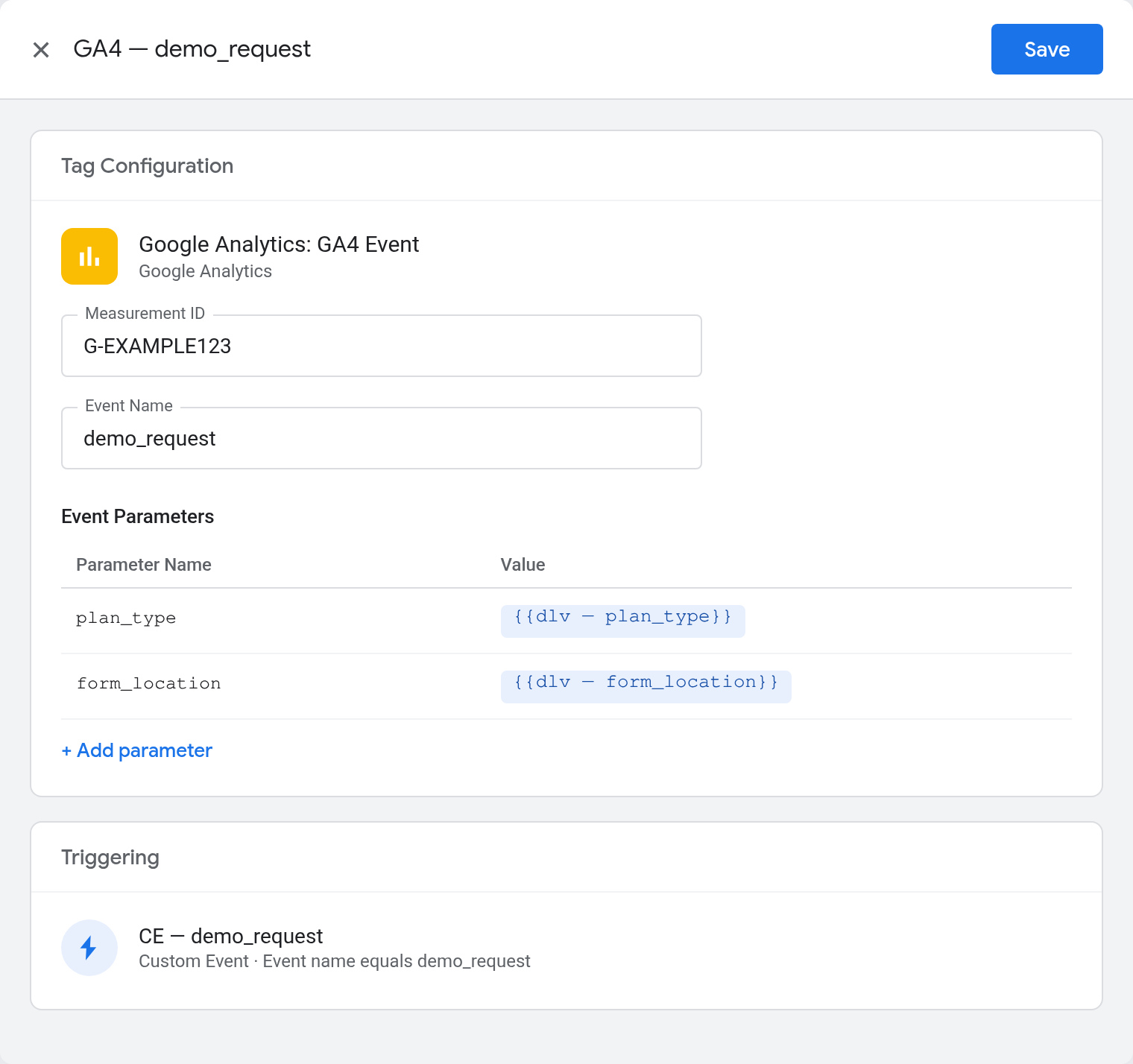
Create the Custom Event Trigger
- In GTM, go to Triggers → New → Custom Event.
- Set the Event name to
demo_request. This must match your dataLayer push exactly — case-sensitive. - Set it to fire on All Custom Events matching this name (not “Some Custom Events” unless you need conditions).
- Name the trigger clearly: “CE – Demo Request”.
Configure the GA4 Event Tag
- In GTM, go to Tags → New → Google Analytics: GA4 Event.
- Link it to your GA4 Configuration tag.
- Set the Event name:
demo_request. - Under Event Parameters, add rows for each parameter you want to pass:
- Parameter name:
plan_type→ Value:{{DL - plan_type}} - Parameter name:
page_section→ Value:{{DL - page_section}}
- Parameter name:
- Set the trigger to “CE – Demo Request”.
- Name the tag: “GA4 – Event – Demo Request”.
Set Up Data Layer Variables
For each parameter you want to capture from the dataLayer push:
- GTM → Variables → New → Data Layer Variable.
- Set the Data Layer Variable Name to
plan_type. - Name the variable:
DL - plan_type. - Repeat for each parameter.
Creating Custom Events via gtag.js (No GTM)
If you’re running GA4 directly through gtag.js without GTM, fire events using the gtag('event', ...) call:
gtag('event', 'demo_request', {
  plan_type: 'enterprise',
  page_section: 'hero'
});
This fires immediately when JavaScript executes. For a button click handler:
document.getElementById('demo-btn')
  .addEventListener('click', function() {
    gtag('event', 'demo_request', {
      plan_type: document.querySelector('[data-plan]').dataset.plan,
      page_section: 'pricing'
    });
  });
The gtag.js approach is simpler to implement but harder to maintain. Every change requires a code deployment. For most production sites, GTM is worth the additional setup.
Registering Custom Dimensions (Required Before Parameters Appear in Reports)
Sending parameters with custom events is not enough. GA4 only surfaces parameter values in reports when they’re registered as custom dimensions — this is a common surprise for developers who correctly implement a custom event, then can’t find the parameter data anywhere in the UI.
To register a custom dimension:
- Go to GA4 Admin → Property → Custom definitions → Create custom dimension.
- Set the scope to Event.
- Dimension name: the human-readable label (e.g., “Plan Type”).
- Event parameter: the exact parameter key from your event (e.g.,
plan_type). - Save.
Limits on the free tier: 50 event-scoped custom dimensions and 50 custom metrics per property. GA4 360 extends these to 125 each. Be deliberate about what you register — parameters that don’t need to be queryable in reports don’t need a custom dimension. Dimensions you create count permanently against your quota even if you archive them.
Timing note: GA4 only backfills custom dimension data from the moment you register the dimension. Data collected before registration is not retroactively populated. Register dimensions early in your implementation, before the first events fire in production.
Verifying Custom Events in DebugView
Don’t verify custom events by checking the standard reports — there’s a 24-48 hour data processing delay before events appear there. Use DebugView to confirm the event fires correctly in real time.
To enable debug mode in GTM:
- In GTM, click Preview — this opens the Tag Assistant on your site.
- Navigate to the page where your event triggers.
- Perform the action (click the button, fill the form, reach the scroll milestone).
- In GA4 Admin → DebugView, your event should appear in the event stream within seconds.
To enable debug mode with gtag.js directly, append ?gtm_debug=1 to the page URL if using GTM, or use the Google Analytics Debugger Chrome extension.
In DebugView, expand the event to verify:
- The event name matches exactly (watch for capitalization differences)
- Your custom parameters appear with the correct values
- The event fires once per user action — not twice (which would indicate duplicate triggers)
If the event appears twice, check for duplicate GA4 Config tags firing the same event. If the event name is wrong, verify the GTM trigger’s Custom Event name matches the dataLayer push’s event key exactly.
Keeping Your Event Registry Clean
For web data streams, GA4 does not impose a hard limit on the number of unique event names you can send. The practical constraint is manageability: a property with 800 event names is nearly impossible to audit, report on, or hand to a new analyst without extensive documentation. Clean architecture matters even when the ceiling isn’t a hard wall.
App data streams operate differently: the GA4 free tier caps app streams at 500 unique event names per app user (GA4 360 raises this to 2,000 per app user). If you’re running a web+app property, the app-stream limit applies to app hits only.
Strategies that keep any property manageable:
- Audit before adding. Before creating a new event name, check Admin → Events → All Events. Is there an existing event that covers this action? Extend its parameters rather than adding a new name.
- Use a consistent taxonomy. Document your naming schema in a shared spreadsheet before implementation starts. Every developer, agency, and GTM user should reference the same list.
- Never put dynamic IDs in event names.
product_viewwithproduct_idas a parameter = 1 clean entry.product_view_12345with a new ID per product = hundreds of nearly identical event names that are impossible to aggregate. - Deprecate cleanly. When you stop using an event, archive the associated custom dimensions. This keeps the Admin interface readable and your quota clean.
If you’re taking over a GA4 property with an unknown event taxonomy, the first step is an events audit: Admin → Events → All Events → sort by count, look for naming inconsistencies (click_cta and cta_click for the same action), and document what each event actually tracks before adding anything new.
Custom Events vs GA4 Conversions (Key Events)
Any event — including custom events — can be marked as a Key Event (formerly “conversion”) in GA4. This makes the event visible in the Conversions report, usable in attribution models, and importable into Google Ads.
To mark a custom event as a Key Event:
- GA4 Admin → Events → All Events.
- Find your custom event (it needs to have fired at least once to appear).
- Toggle the Mark as key event switch.
Key Events appear retroactively in standard Overview reports from the moment you toggle them on. Behavior in Explorations and BigQuery exports is less predictable — historical event data before the toggle may not recalculate as a key event in those surfaces, so don’t rely on retroactive key event counts in custom analyses or raw exports for pre-toggle periods.
Where to Go Next
Three rules keep most implementations clean: snake_case verb-first names every time; dynamic identifiers go in parameters, not event names; register custom dimensions before events fire in production. Verify in DebugView — don’t wait 48 hours for reports to tell you something fired wrong.
- Fix My Tracking decision tree — GTM Tags Not Firing branch for step-by-step diagnosis when custom events don’t appear
- DebugView mastery guide — reading the event stream and diagnosing parameter-level issues
- Custom events glossary — definitional background: what custom events are and where they fit in GA4’s event taxonomy
- Data layer glossary — how the data layer works and why the push structure matters
- DebugView glossary — enabling debug mode and reading the event stream in real time
