
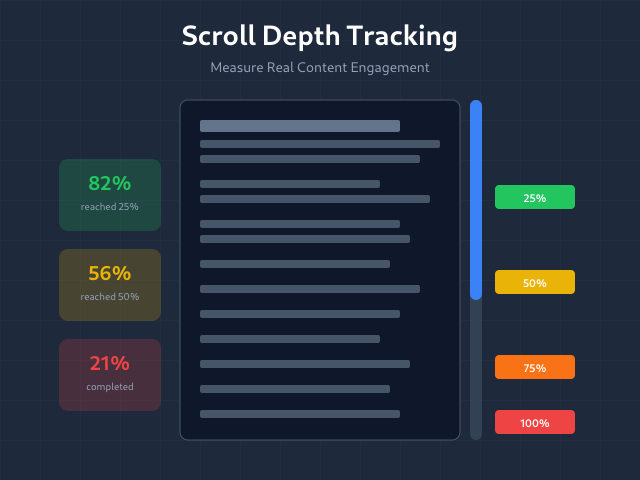
Pageviews lie. A visitor can “view” your page for 2 seconds, see nothing, and bounce. Scroll depth tracking reveals actual engagement — how far people scroll, where they stop, and whether they’re consuming your content or abandoning it.
GA4 includes basic scroll tracking by default, but it only fires at 90%. That’s not enough. This guide covers how to implement granular scroll tracking that shows exactly where readers lose interest.
What Is Scroll Depth Tracking?
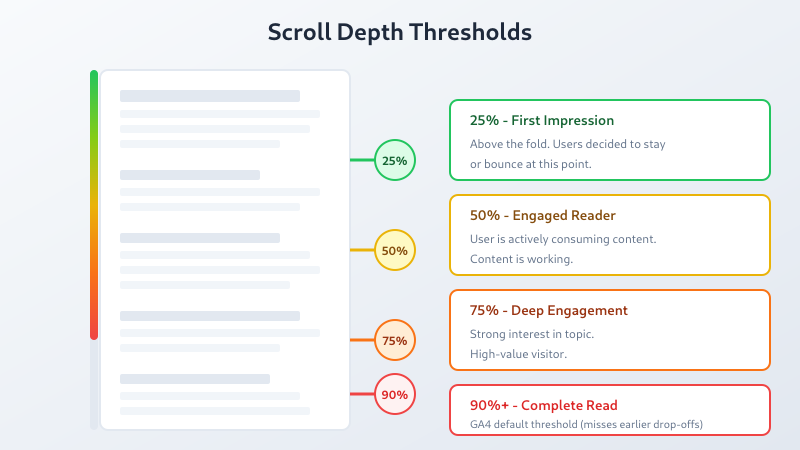
Scroll depth tracking measures how far users scroll down a page, typically expressed as a percentage (25%, 50%, 75%, 100%) or pixel distance. Each threshold triggers an event that GA4 records.
Why it matters:
- Identifies where readers drop off
- Measures content engagement beyond pageviews
- Reveals optimal content length for your audience
- Helps prioritize above-the-fold content
- Compares engagement across different page types
GA4’s Built-In Scroll Tracking
GA4’s Enhanced Measurement includes automatic scroll tracking — but with a catch. It only fires one event when users reach 90% scroll depth.
Enabling Enhanced Measurement Scroll
- Navigate to Admin → Data Streams
- Select your web stream
- Click Enhanced measurement settings
- Ensure “Scrolls” is enabled
The 90% threshold captures “completed” scrolls but misses everything else. You won’t know if users stop at 25% or 75%. For content analysis, that’s a problem.
When 90% Is Enough
The default works for:
- Short landing pages where 90% indicates completion
- Sites focused on conversions rather than content consumption
- Teams without GTM access or technical resources
For blogs, documentation, long-form content, or any page where engagement depth matters — you need more granularity.
Custom Scroll Tracking with GTM
Google Tag Manager offers a built-in scroll depth trigger. It can fire at any percentage or pixel threshold you define.
Step 1: Create Scroll Variables
- In GTM, go to Variables → Configure
- Enable these built-in variables:
- Scroll Depth Threshold
- Scroll Depth Units
- Scroll Direction
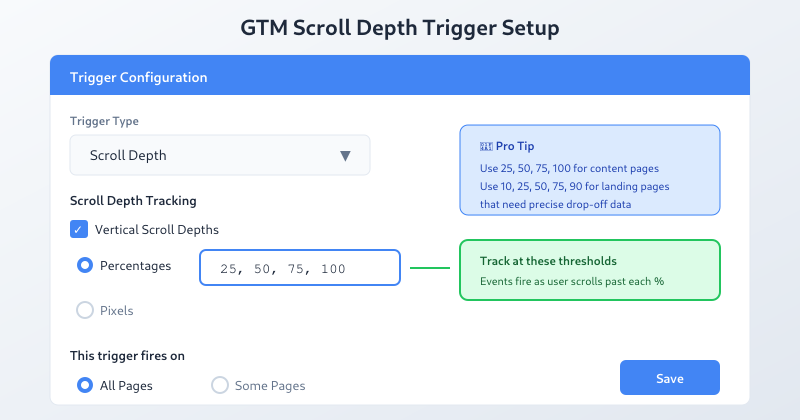
Step 2: Create Scroll Depth Trigger
- Go to Triggers → New
- Select “Scroll Depth” as trigger type
- Configure:
- Vertical Scroll Depths: Check “Percentages”
- Percentages:
25, 50, 75, 100 - Enable on: All Pages (or specific pages)
- Name it “Scroll Depth – 25/50/75/100”
Step 3: Create GA4 Event Tag
- Go to Tags → New
- Select “Google Analytics: GA4 Event”
- Configure:
- Measurement ID: Your GA4 ID
- Event Name:
scroll_depth - Event Parameters:
percent_scrolled= {{Scroll Depth Threshold}}page_path= {{Page Path}}
- Trigger: Select your scroll depth trigger
- Name it “GA4 – Scroll Depth”
Step 4: Disable Enhanced Measurement Scroll
To avoid duplicate events, disable the default scroll tracking:
- GA4 Admin → Data Streams → Web stream
- Enhanced measurement → Settings gear
- Toggle off “Scrolls”
Now your custom GTM tracking handles all scroll events with full granularity.
Advanced Scroll Configuration
Pixel-Based Thresholds
Percentage-based tracking works for most cases. But for pages with variable content lengths, pixel thresholds can be useful:
500— Below the fold engagement1000— Moderate scroll2000— Deep engagement
Use pixels when you want to measure engagement with specific content sections regardless of page length.
Page-Specific Tracking
Not every page needs scroll tracking. Blog posts and documentation? Yes. Contact pages and checkout? Probably not.
In your GTM trigger, set conditions:
Page Pathcontains/blog/Page Pathmatches regex^/articles/.*
This keeps your data focused on content pages where scroll depth matters.
Tracking Scroll Direction
Users don’t just scroll down — they scroll up to re-read sections. The Scroll Direction variable captures this:
down— Initial scroll through contentup— Re-engagement with earlier content
Add this as an event parameter to analyze re-reading behavior.
Analyzing Scroll Data in GA4
Finding Scroll Events
Custom scroll events appear in Reports → Engagement → Events. Look for your scroll_depth event name.
For detailed analysis, use Explore:
- Create new Exploration
- Add dimensions: Event name, percent_scrolled (custom parameter)
- Add metrics: Event count, Users
- Filter: Event name = scroll_depth
Key Metrics to Track
Scroll metrics are engagement KPIs — see how they fit alongside other metrics in the KPI Dictionary for your industry.
| Metric | Calculation | What It Reveals |
|---|---|---|
| Scroll Completion Rate | 100% scrolls ÷ Pageviews | What percentage of visitors read to the end |
| Average Scroll Depth | Weighted average of thresholds | Typical engagement level |
| Drop-off Points | Compare counts at each threshold | Where readers lose interest |
| Content Efficiency | Scroll depth vs. content length | Whether content is too long |
Interpreting the Numbers
Healthy scroll patterns:
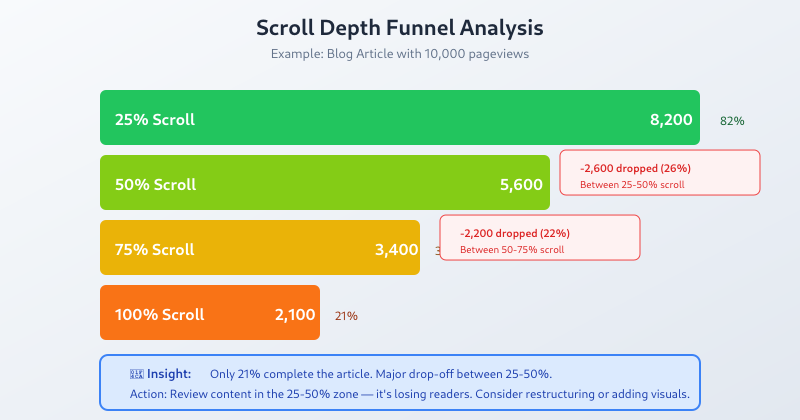
- 25%: 80-90% of visitors (most make it past the intro)
- 50%: 50-70% of visitors (decent engagement)
- 75%: 30-50% of visitors (strong interest)
- 100%: 20-40% of visitors (completed readers)
Warning signs:
- Massive drop between 25% and 50% — intro doesn’t deliver on headline promise
- Very few reaching 75%+ — content is too long or loses focus
- High 100% but low conversions — content doesn’t drive action
Scroll Tracking Best Practices
1. Start with Standard Thresholds
25/50/75/100 works for most sites. Add more granularity (10% intervals) only if you need it — more events mean more data processing and complexity.
2. Combine with Time on Page
Fast scrolling to 100% isn’t the same as engaged reading. Cross-reference scroll depth with session duration to distinguish skimmers from readers.
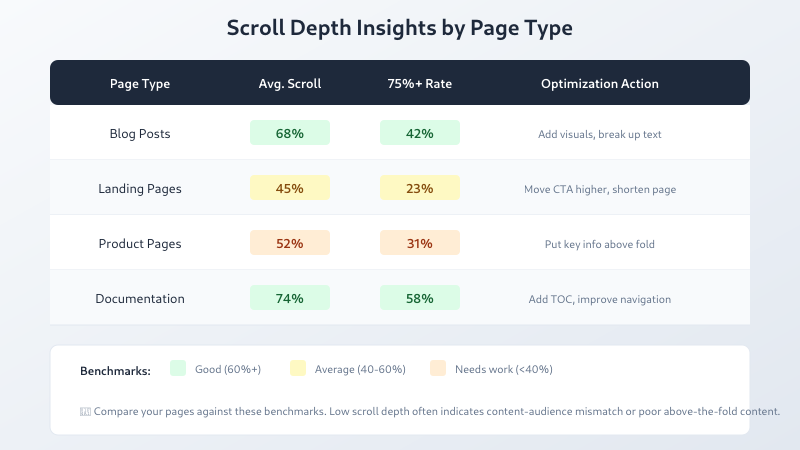
3. Segment by Content Type
Don’t compare blog posts to product pages. Create segments or separate reports for each content type.
4. Account for Page Length
A 100% scroll on a 500-word post means less than 100% on a 3,000-word guide. Consider normalizing by content length or using pixel-based metrics for comparison.
5. Test Before Deploying
Use GTM Preview mode and GA4 Debug View to verify events fire correctly at each threshold.
Common Scroll Tracking Issues
If scroll events aren’t working as expected, the Fix My Tracking decision tree can walk you through diagnosis step by step.
Events Not Firing
Causes:
- GTM trigger not configured correctly
- Page too short to trigger thresholds
- JavaScript errors blocking GTM
Fix: Check GTM Preview mode. Scroll on the page and verify trigger fires.
Duplicate Events
Causes:
- Both Enhanced Measurement and GTM tracking enabled
- Multiple GTM containers on the page
Fix: Disable Enhanced Measurement scrolls when using custom GTM tracking.
Inconsistent Data
Causes:
- Single Page Apps (SPAs) not resetting scroll state
- Lazy-loaded content changing page height
Fix: For SPAs, trigger scroll tracking reset on virtual pageviews. For lazy loading, use pixel thresholds instead of percentages.
Bottom Line
Scroll depth tracking transforms vague “engagement” into measurable behavior. GA4’s 90% default is a start, but GTM’s granular tracking reveals where readers actually drop off. Set up 25/50/75/100 thresholds, analyze drop-off patterns, and use the data to improve content structure. The pages with the highest scroll completion rates are your templates for success — study what they do differently. Scroll depth is just one engagement signal: pair it with video engagement tracking for media-heavy pages, and learn to capture the rest with custom events in GA4.
